Export Digital Factory Data to a Spreadsheet
You can export selected factory areas, such as processes, site variables, lookup tables, materials, or machine data, into Excel spreadsheets for editing. You can export:
- Selected data
- Lookup tables
- Processes
For example, you can export a modified process in one Digital Factory, to import into another Digital Factory - see Import Spreadsheet Data to a Digital Factory. Or you can regularly export, update, and re-import some of your data on a quarterly, semi-annual, or annual basis.
Export Selected Data
You can export Digital Factory data, such as machines, materials, tool shops, and plant variables. This provides an efficient way to work on this data only, without including all the other elements of the Digital Factory.
Export Process
- From the open Digital Factory, click File > Export > Digital Factory Data to Excel.
- Select the folder to export to, then click Save to export the data.
The export process creates:
- An index spreadsheet, containing:
- Top-level information about the Digital Factory
- Cross-references to related process group spreadsheets and
- A sheet named VPE_data containing the plant information for the Digital Factory.
- A spreadsheet for each process group in the Digital Factory.
Mapping Spreadsheets to Displays
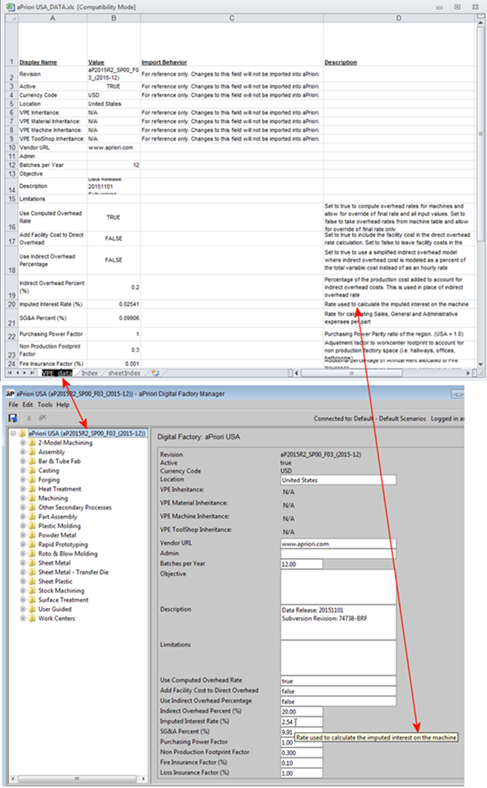
The screenshots below show how the info in the spreadsheets map to the displays in the Digital Factory manager. Note that the Import Behavior column in the index spreadsheet simply flags those fields that cannot be edited and then re-imported. Also, the strings in the Description column are populated from the "tooltip" text when you hover over an item in the Digital Factory Manager. These strings also cannot be edited and then re-imported.
Index sheet mapping
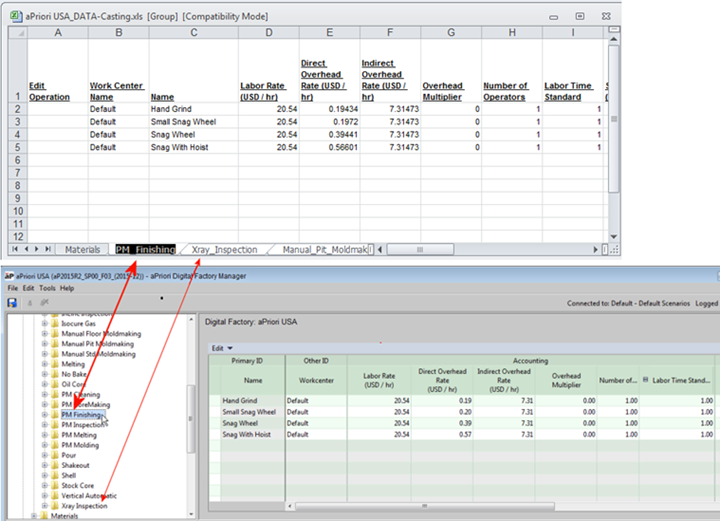
The spreadsheet for each process group contains sheets for materials, each machine, and (if applicable) tool shops. You can see the mapping between the Digital Factory Manager display and the exported spreadsheet below, using the Casting process group as an example:
Materials mapping (process groups without material stock)
The first tab in the export spreadsheet maps to the Materials table in the Digital Factory Manager. Most process groups simply consider the basic properties of the materials and each row lists a different material.
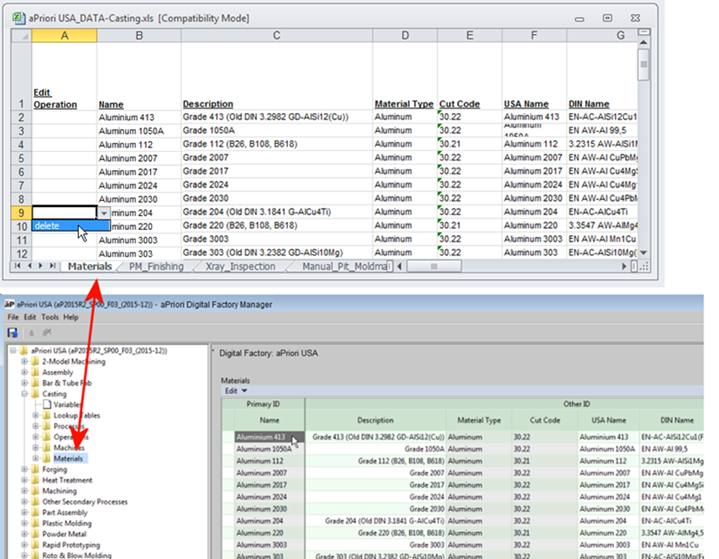
In this example, the first tab in the export spreadsheet maps to the Materials table in the Digital Factory Manager:
Materials mapping (process groups with material stock)
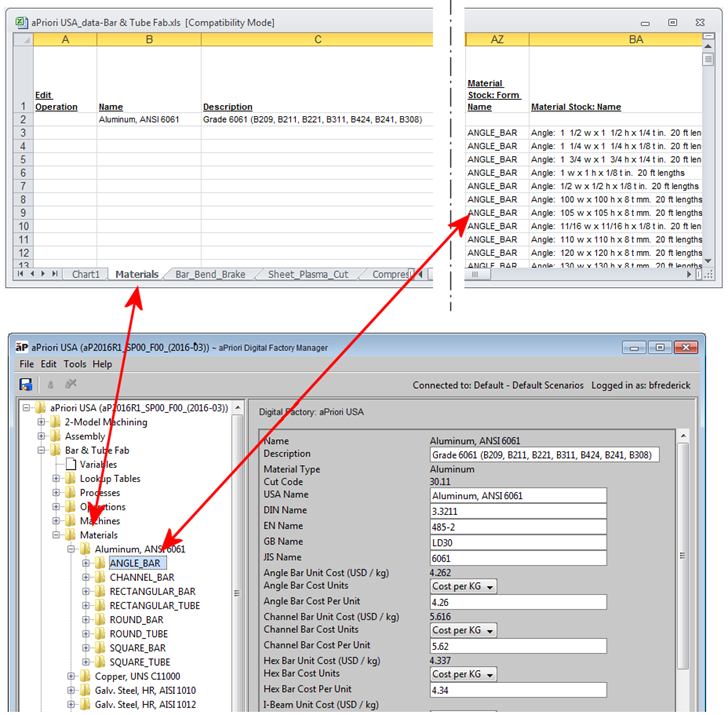
A few process groups -- Forging, Bar & Tube, Sheet Metal, and Sheet Metal -- Transfer Die -- must use material in the form of pre-formed stock: round tubes, solid bars, I-beams, etc. Each of these can come in different lengths, made of different materials, and these factors must be taken into account during the costing of the part that uses them. For these process groups, the Materials tab is much larger and is populated with all the additional stock information found in the Digital Factory Manager.
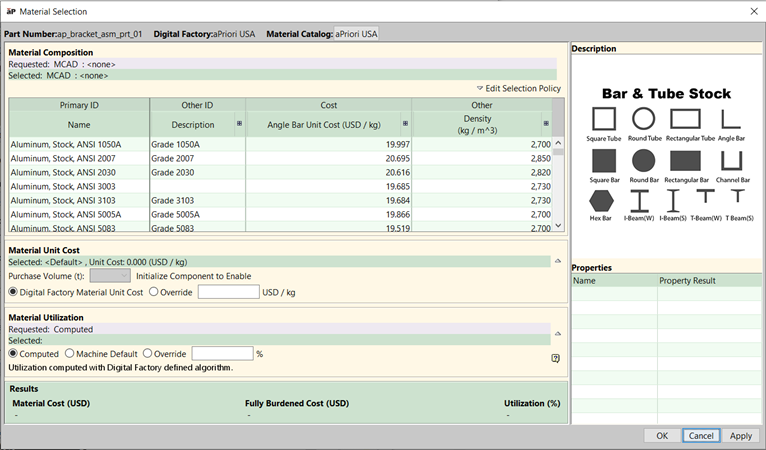
When working with these stock-based process groups, it may also be helpful to refer to the Material Selection window in the main aPriori UI.
Machines mapping
The next several tabs contain the machine information:
Tool Shops mapping
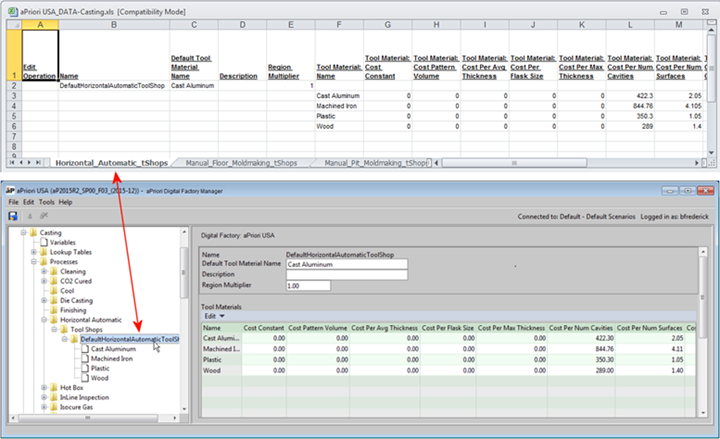
Any tool shops defined under the Digital Factory processes will be allocated to the far-right tabs in the export spreadsheets, with a "_tshops" extension.
Note:
Only one tool shop is supported per process, so you cannot add additional tool shops using Excel.
Editing Guidance
- To add materials or machines, add a new row in the spreadsheet and populate it with the necessary details.
- To remove a machine or a material, change the value in the Edit Operation column to "delete" by selecting from the dropdown menu.
- Do not change the Name column; any name changes are interpreted as a new version of this data (such as a new machine).
- Refer to the Digital Factory Manager display whenever you change the values of fixed value fields (such as Cut Code) to ensure that the value you enter in Excel corresponds to an acceptable value in the Digital Factory Manager.
Export Lookup Tables
Digital Factory lookup tables provide tabular data, either for a cost model in general, or for a specific process or operation. (Lookup tables are described in detail in the section "Working with Lookup Tables" in the Cost Model Workbench User Guide.)
For an example of how the aPriori Wire Harness Digital Factory uses lookup table import/export to maintain a Component Library of approved parts, see Updating the Component Library.
You can export lookup tables to Excel spreadsheets, for editing or to import into a different Digital Factory.
Export Process
- Open the Digital Factory to export from.
- Click File > Export > Digital Factory Lookup tables to Excel.
- Navigate to the folder where you want to create the export Excel files. If you wish, modify the default name to something more specific.
(The default name is simply the Digital Factory name. such as "aPriori USA.xls"). - Click OK.
This creates an Excel file for every process group in the Digital Factory, as well as an "index" spreadsheet for the other sheets created by the export.
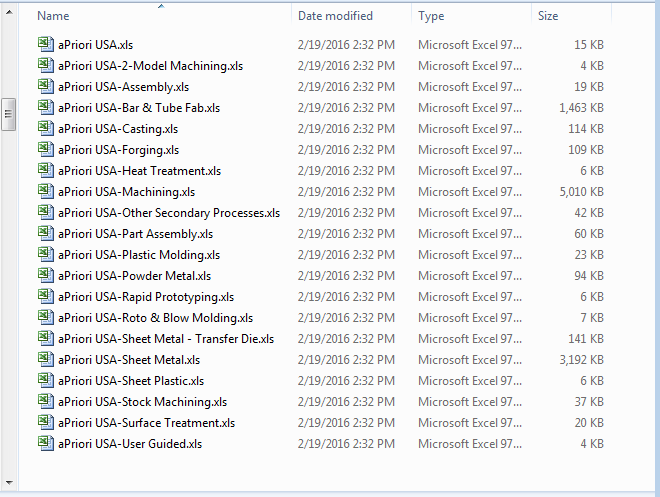
You can now modify the Excel files with updated lookup table info and then re-import into the current Digital Factory, or just import the exported Excel files into another Digital Factory - see Import Spreadsheet Data to a Digital Factory.
If change a sheet with data from a .csv file or another spreadsheet, you must ensure that the columns in the import file match the columns in the lookup table spreadsheet exactly.
Then you must copy the cells from the import spreadsheet and paste them into the corresponding cells in the Assembly component library sheet. If you are replacing all the information in your Component Library, make sure that no old data remains in the target spreadsheet after the Paste. If you are adding new information, make sure that you do not overwrite data that you wish to keep. Save the modified spreadsheet when done.
Lookup Table Mappings
The spreadsheet for each process group has a tab for each lookup table in that process group:
Export Processes
- Open the Digital Factory from which you want to export the processes.
- Click File > Export > Processes... from the Digital Factory Manager tool bar.
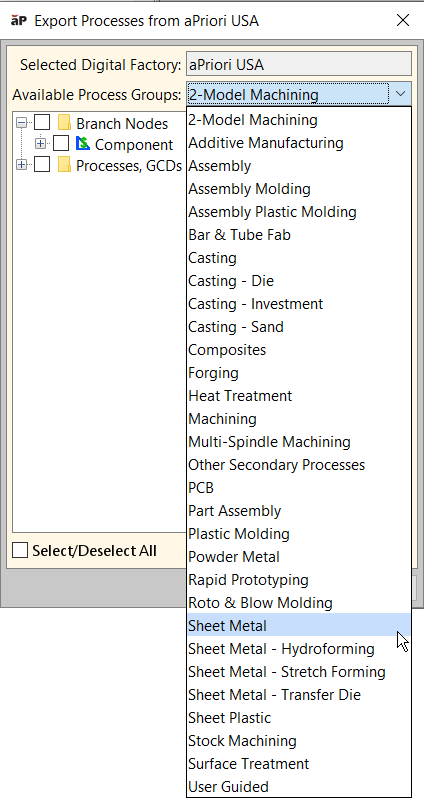
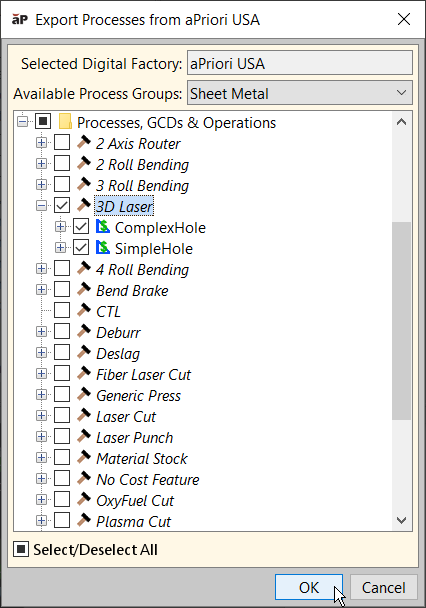
- In the Export Processes dialog, select the process group from which you want to export the process(es). For example, Sheet Metal.
-
In the selected process group, expand and select the process-related elements that you want to export, then click OK.
-
When prompted, navigate to a folder and Save the .zip file.
- aPriori also prompts you to save a .txt file summarizing the exported process info.
Review Exported Processes
To review the exported properties that will be written to a text file, expand one or more nodes in the Process References window.
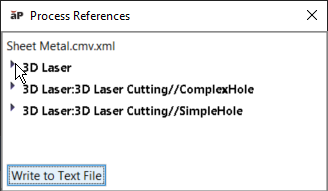
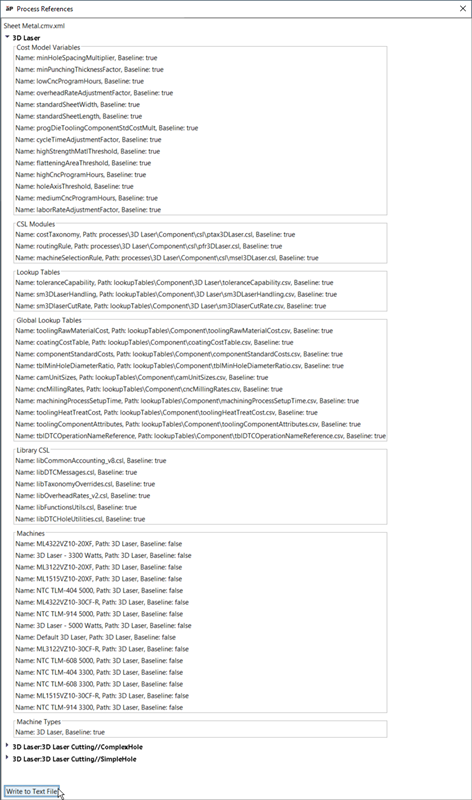
Click Write to Text File to save this .txt file in the same folder as (and with the same name as) the .zip file.