Change a User License
aPriori System Administrators can manage users and their associated information, including changing the license name allocated to a user.
Info:
See Managing users for more details.
Note:
See Overview of Self-Service User Management for changing users in cloud systems.
To change a user license:
- Select Tools > Admin Tools > System Admin Toolset
- Click the System Administrator link.
-
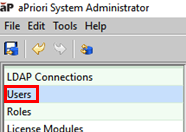
Click Usersin the left menu to display the Users tab.
-
In the User area, scroll over until you see the User License column. This shows which license a user is currently allocated to.
-
To change a user's license, click on the cell with the license name, and select a different license name:
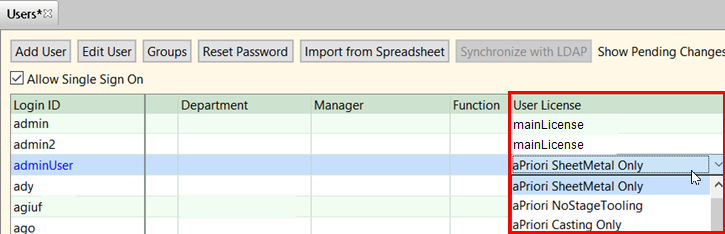
This example shows that for the user adminUser, you are selecting the aPriori SheetMetal Only license, while other users are allocated to mainLicense.
-
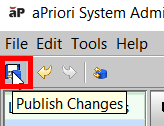
To publish and save the change, either click the Publish icon, or select File > Publish Changes.