Resetting passwords
You can change a user password in the following ways:
- A user can change their own password from the Tools > Reset Password menu item in the user interface.
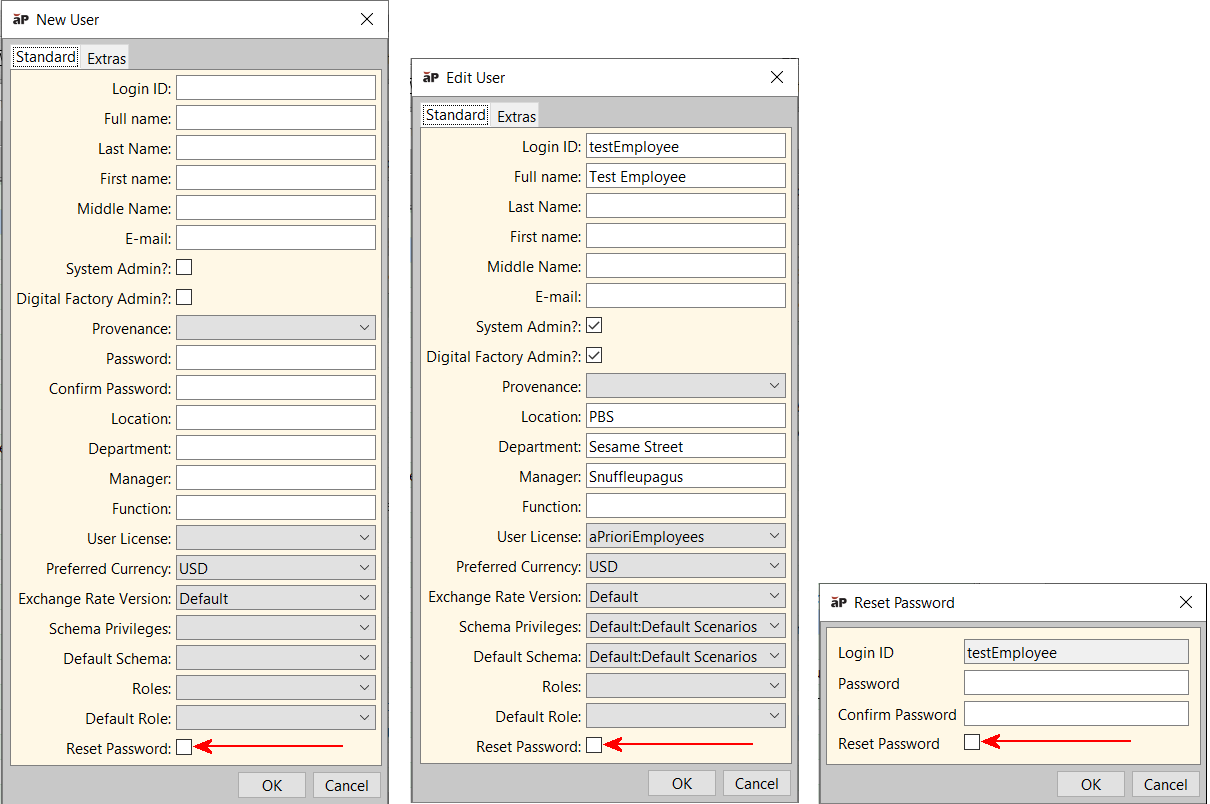
- You (administrator) can force a new user to change their password the first time they successfully log in with a temporary password, by checking the Reset Password box on the New User (Add User) dialog box.
- You can force an existing user to change their password the next time they log in with their existing password, by checking the Reset Password box on the Edit User dialog box.
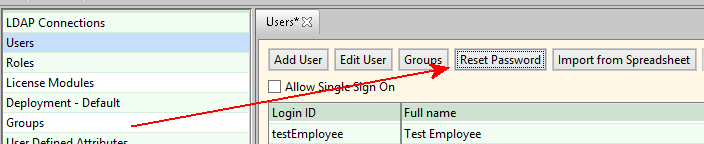
- You can change a user’s password directly by using the Reset Password button on the Users tool bar.
Regardless of the reset method, the password must conform to current password restrictions and limitations. For more information, see Managing users.
Because Reset Password buttons or checkboxes appear on multiple locations in the System Administration windows, it is important to understand how they differ from each other.
-
Use the Reset Password button on the toolbar to explicitly change a user’s existing password:
-
Use the Reset Password checkboxes at the bottom of the following dialog boxes to force a user to reset their own password the next time they log in: Add User (New User), Edit User, Reset Password.
Reset a user’s password
- Select a user on the Users tab and click Reset Password to display the Reset Password window.
-
Enter new password and confirm it.
The password must conform to current password restrictions and limitations. For more information, see Managing users.
-
If you want this to be a temporary password that the user must change to something of their own choosing after successfully logging in, check the Reset Password box at the bottom of the dialog.
- Click OK.
- Click File > Publish Changes from the System Administrator menu bar or click
 in the toolbar to display the Publish Changes window, then click Yes to publish your changes.
Removing users
Removed users can be considered “deactivated”. They are no longer able to access aPriori, but their information still exists in the aPriori database. This means that their account can be reactivated, and that their historic activity can be accessed by aP Admin and aP Analytics.
-
aPriori has uses the following system variable to control whether removed users appear in searches:
includeRemovedUsersInSearchCriteria(default value is "false") -
When you deactivate a user, any assigned license is unassigned from that user. You reactivate the user by assigning an active license to that user (see below).
Remove a user
- Right-click the user in the table that you want to delete and select Remove from the context menu.
- The user’s Login ID in the table will be displayed in gold strikethrough. Other entries in the row will show black strikethrough or will be blanked or greyed. Removed users will also appear with strikethrough text in future Search results.
-
Select File > Publish Changes from the System Administrator menu bar or click
in the toolbar to display the Publish Changes window, then click Yes to publish your changes.Once published, the removed user Login ID will be displayed in black strikethrough.
-
To toggle the display of removed users, check or uncheck the box to the left of Show removed users.