Linking Materials Using a Spreadsheet
To use a spreadsheet to add a new custom material and link it to a source material:
-
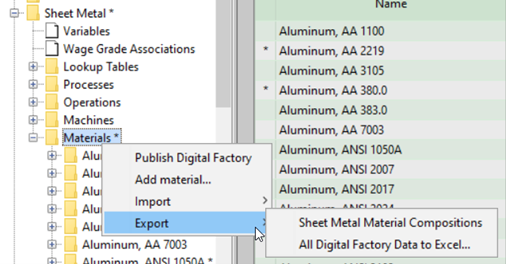
Export materials information to Excel: right click a chosen process group’s Materials folder, and choose either one of the export options.
-
Open the exported spreadsheet, and navigate to the materials table worksheet if necessary.
- Insert a row for the new custom material.
-
Enter the name of the process group in the Process Group column, enter the name of the new material in the Name column, and enter the name of the material you want to link as its source in the Source Name column.

The image above shows the addition of the linked material Steel, Cold Worked, AISI 1010_Custom.
-
If you leave the Inherit Source Stocks field blank (or enter TRUE), aPriori will add all source material stocks to your custom material.
If you enter FALSE, your custom material will use only virtual stocks.
-
Repeat steps 3 through 5 for each material you want to add and link to a source material. Optionally, you can also apply overrides to any new material to add custom information; in this case this custom information will not inherit from the source material. Subsequent changes to the source material will not affect any overrides.

The image above shows the addition of another linked custom material, Steel, Cold Worked, AISI 1010_Custom01, and an override to its Scrap Cost Percent value. Changing this override unlinks the Scrap Cost Percent field from the source material.
-
Save spreadsheet and close.
-
Import by right clicking the chosen process group’s Materials folder, and choosing one of the import options. Choose the same import method as the export method you used in step 1.
When the import is complete, each custom material is populated with the source material information, including stocks if required.
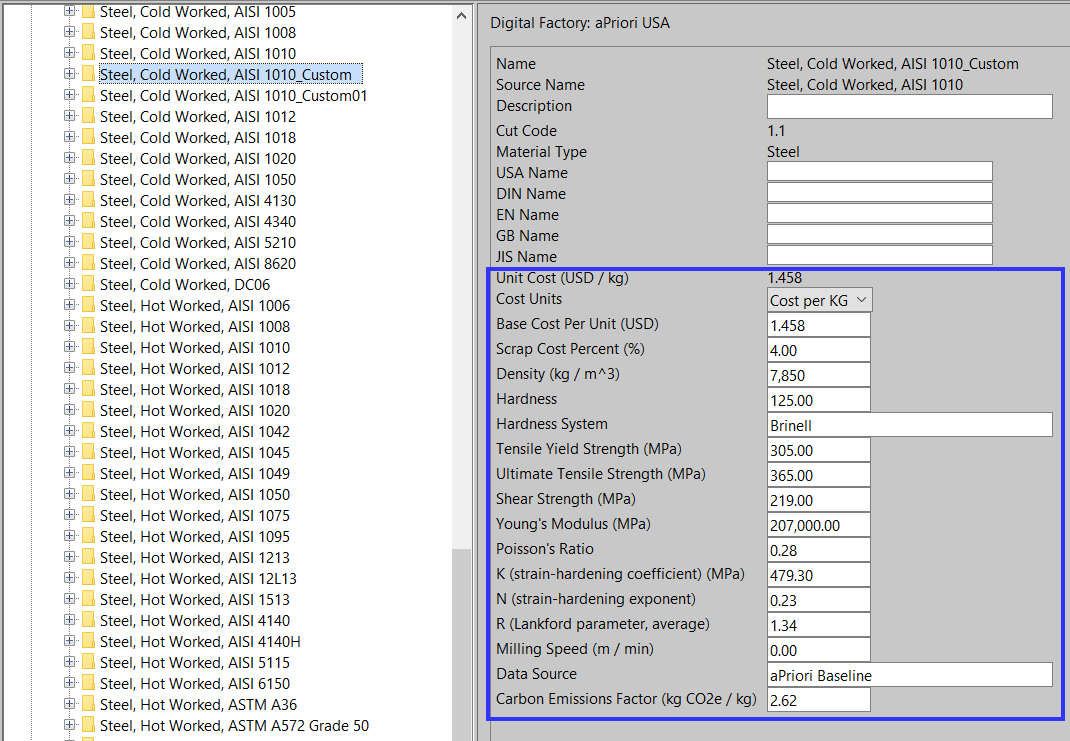
In this example, Steel, Cold Worked, AISI 1010_Custom and Steel, Cold Worked, AISI 1010_Custom01 are added to the Digital Factory and linked to Steel, Cold Worked, AISI 1010, except for the Scrap Cost Percent field of Steel, Cold Worked, AISI 1010_Custom01, which is unlinked and contains the specified override:

Important:
Once you have imported your changes, do not import the same spreadsheet again without first re-exporting it. Spreadsheet rows for new materials contain blank fields, which, upon import, will be populated in the Digital Factory based on the source material. After import, these blank fields in the spreadsheet are no longer associated with a new material (since the material now exists in the Digital Factory), and so the blank fields are considered to be overrides. If you re-import without first re-exporting, the blank fields will be populated with null values in the Digital Factory, overwriting existing data.
Important:
When aPriori imports materials from a spreadsheet, if it detects duplicate (non-unique) alternative material names, these duplicate names are not saved to the Digital Factory and no alert or warning is issued. The import of all other data silently proceeds. See Unique Alternative Material Names Enforced for Spreadsheet Imports.
Note the following requirements:
- The source material referenced in the spreadsheet must already exist in your aPriori database. It cannot be defined earlier in the same spreadsheet
- This workflow is possible only when you are adding a new custom material. You cannot edit the source material for an existing custom material using a spreadsheet. If the spreadsheet contains an updated source material name, that field is ignored upon import,
Note:
The only way to link to a new source material is by using the Digital Factory Manage OR by deleting the material and re-adding it as a new material using the spreadsheet.
Unique Alternative Material Names Enforced for Spreadsheet Imports
When you import a Materials spreadsheet spreadsheet, aPriori enforces the uniqueness requirement for alternative material names (that is names specified by the fields USA Name, DIN Name, EN Name, GB Name, and JIS Name):
- Uniqueness requirement: An alternative name cannot be the same as any material's primary name and cannot be the same as any other alternative name of any material.
Important:
When aPriori imports materials from a spreadsheet, if it detects duplicate (non-unique) alternative material names, these duplicate names are not saved to the Digital Factory and no alert or warning is issued. The import of all other data silently proceeds.