Review Manufacturing Process Information
The Manufacturing Process pane shows the processes required to manufacture the component being analyzed:
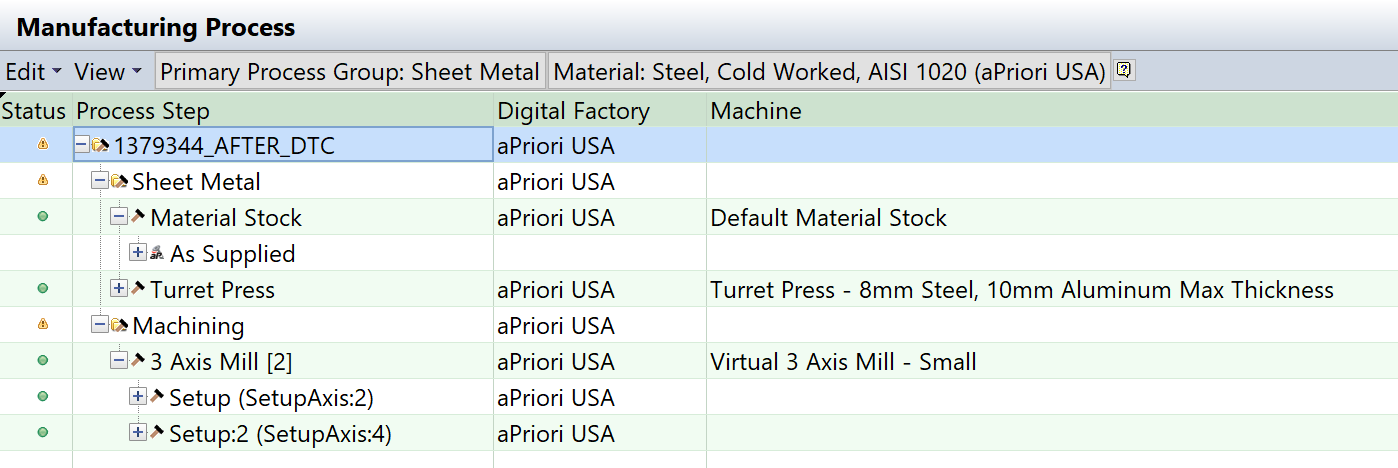
You can expand each step to view more details for each operation.
- Use the Edit and View options to examine and modify information in more detail - see Menu Options.
-
Click the Primary Process Group button to edit the Primary Process group in the Cost Object Infowindow - see Using the Cost Object Info Window.
(Other components require both primary and secondary process groups, for example, Casting and Machining. See Add Secondary Processes.)
-
Click the Material button to launch the Material Selection window - see View and Edit a Material.
- Click the
 command button next to the Material button to display the details of the currently selected material.
Tip:
When working with assemblies, this window updates dynamically when you select a subcomponent, to show relevant information for that subcomponent. See Update Sub-Components Costing Information.
Menu Options
View Options
- Select View > Process-Based Manufacturing view to organize the view based on processes.
- Select View > GCD-Based Manufacturing view to organize the view based on GCDs.
Edit Options
The following Edit menu commands are available for each component:
| Command | Description |
|---|---|
| Material Selection... | Edit material details - see View and Edit a Material. |
| Production Info... | Edit production information in the Production Info tab of the Cost Object window. See Using the Cost Object Info Window. |
| Tolerance Policy... | Edit the tolerance policy for a component. See Edit Tolerances. |
| Show Digital Factory Details... | See information about the Digital Factory, its groups and processes, and logs describing changes made. See Select a Digital Factory |
| Machine Selection... | Edit the machine used for a process. See Edit Machine Selection. |
| Process Setup Options... | Edit available Process Setup Options for a Process Group. See Edit Process Setup Options. |
| Routing Selection... | Edit a routing. See Edit a Process Routing. |
| Quoted Cost... | Display the Quote tab of the Cost Object window. See Using the Cost Object Info Window. |
| Administrative Info... | Display the Administrative Info tab of the Cost Object window. See Using the Cost Object Info Window. |
| Cost Overrides Summary | View all overrides for the current scenario. See Cost overrides summary dialog. |
Tree Icons
The following icons are used in the routing tree/table:
| Icon | Usage |
|---|---|
 |
An operation |
 |
An operation selected by aPriori |
 |
An operation selected by you |
 |
Multiple operations |
 |
Multiple operations selected by aPriori |
 |
Multiple operations selected by you |
 |
A sub-operation selected by aPriori |
 |
A sub-operation selected by you |
 |
A GCD |
 |
A GCD selected by aPriori. |
 |
A GCD selected by you. |
 |
Multiple GCDs |
 |
Multiple GCDs selected by aPriori |
 |
Multiple GCDs selected by you. |
Status Indicators
The Status column shows the costing status of each operation:
- Green: Costing completed successfully.
- Yellow: Costing succeeded with a warning. Typically, a warning means that the requested operation could not be used costing but costing succeeded with an alternative operation.
- Red: Costing failed.