Check if a part has less carbon impact than an earlier version
When you are deciding on manufacturing options for a part, it is helpful to see the carbon impact of different options, such as different materials.
This example shows how to select a different material to manufacture a part, and review the differences in carbon data compared to the previous version of the part (the version using the original material).
Requirements
To enter and analyze sustainability data, you must have an aPriori Sustainability License and aP Pro 2023 R1 or later.
Limitations
- aP Pro does not yet support Sustainability analysis for all process groups. For a list of currently supported process groups, see Processes supported in Sustainability.
- Carbon from product use, tooling, and end-of-life is not currently considered.
Prerequisites
This example requires a scenario for a part that has been costed in a version of aP Pro that includes a Sustainability License.
Procedure
- Open the scenario for the part.
-
Open the Part Details tab.

-
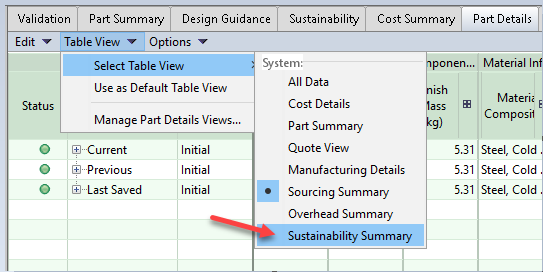
In the Part Details tab, expand the Table View drop-down menu, and then click Select Table View > Sustainability Summary.
-
Check that the Carbon Info cells have values in them.
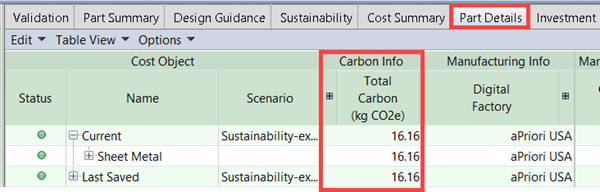
if the Carbon Info cells have no values, you need to recost the part (to recost a part, in the aP Pro menu bar, click Cost).
-
In the Production Scenario section of the Cost Guide, select a new material:
- Select
 in the Material section.
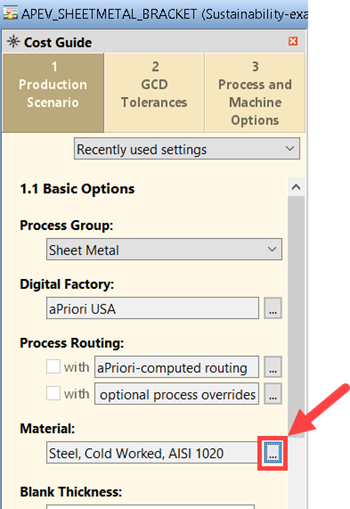
The Material Selection window opens.
- Select
-
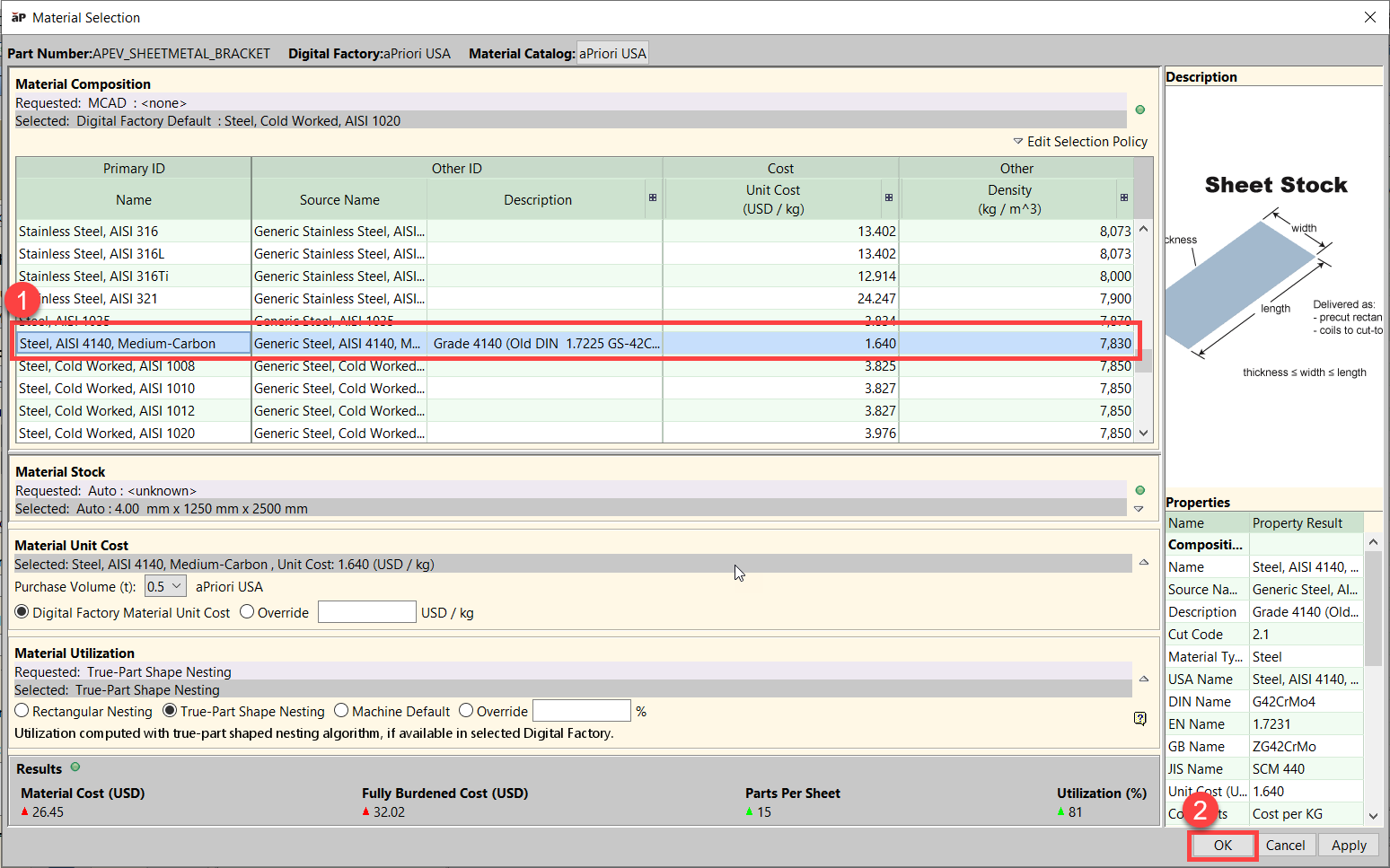
In the Material Selection window, select the new material, and click OK.
-
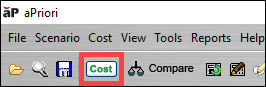
To recost the part, in the aP Pro menu bar, click Cost.
-
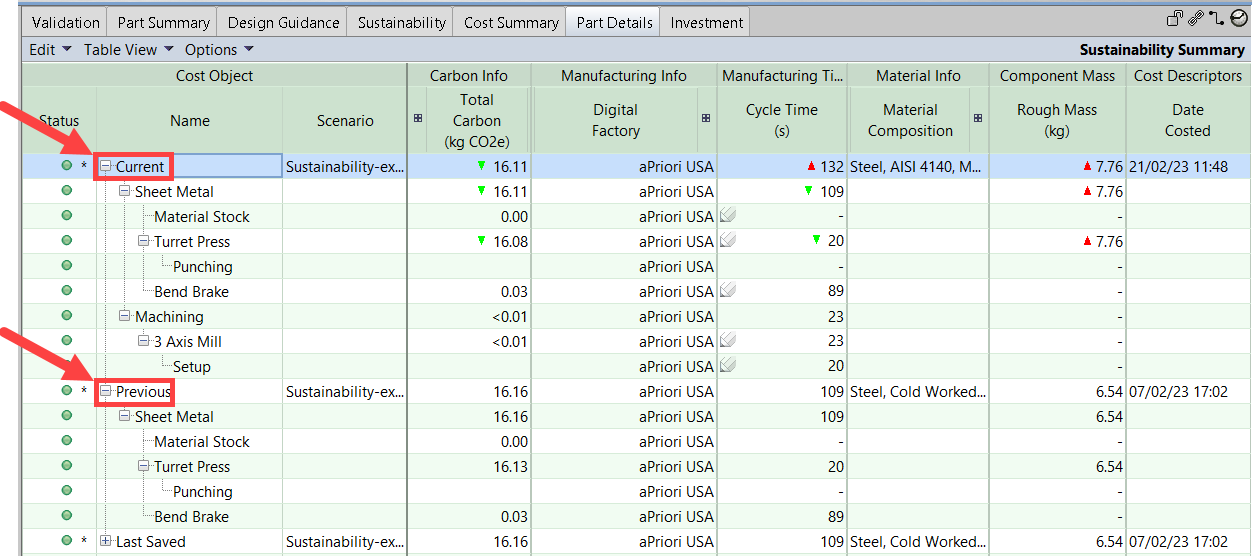
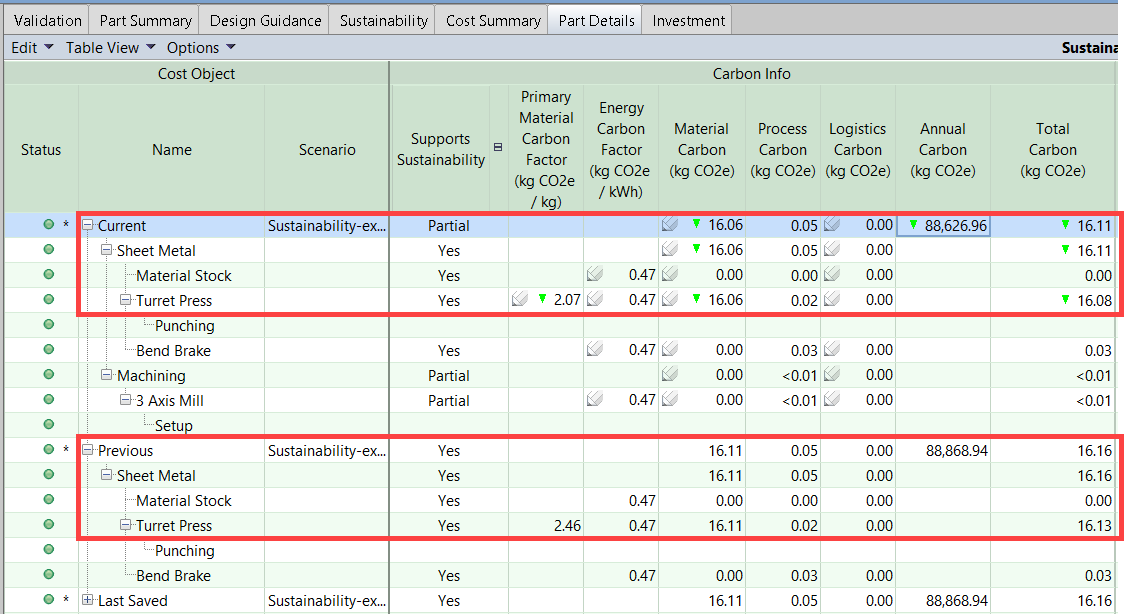
Expand the Current node for the scenario in the Part Details tab, and then continue expanding nodes until all processes appear, and then expand all processes in the Previous node.
-
In the Carbon Info column of the table, expand the Total Carbon (kg CO2e) node.
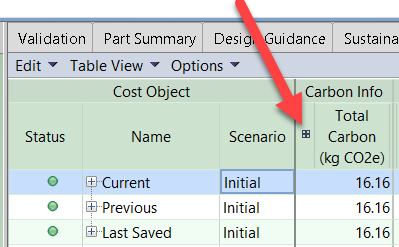
The Carbon Info sub-columns are now visible.
-
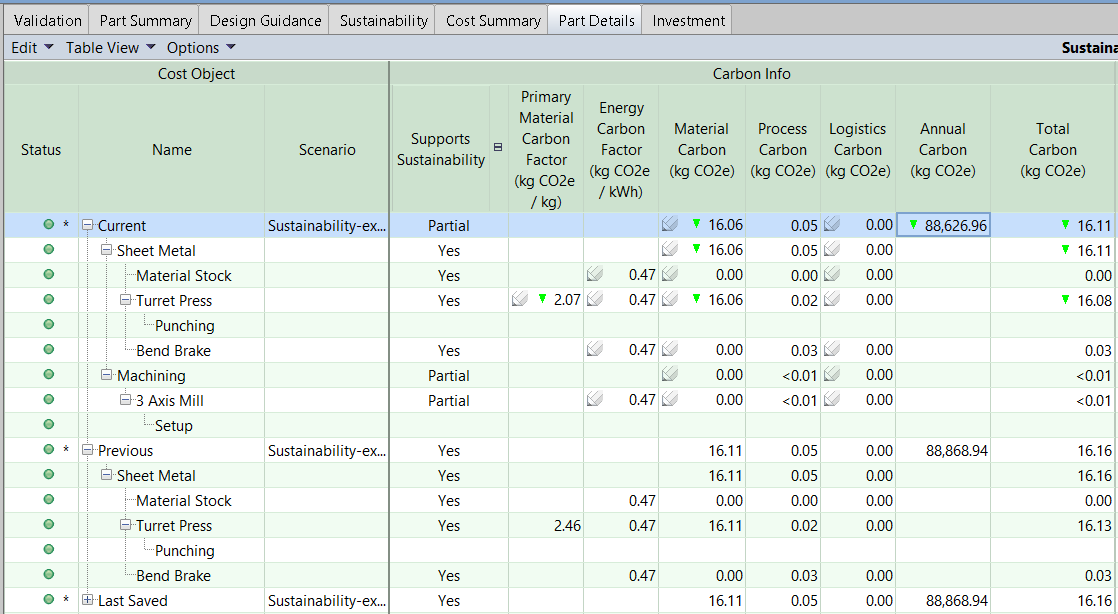
Review the changes in carbon values.
In this example, the Current values for Material Carbon, Annual Carbon and Total Carbon have decreased.
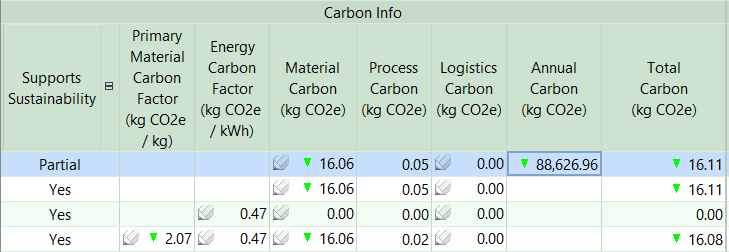
You can compare the Current values with the Previous values.
To learn how to compare the carbon impact of using different manufacturing processes, read: See how different manufacturing options affect carbon impact for a part.