Subsequent costing
When you open a component that has been costed previously, aP Pro displays the saved cost information for the component in the Cost Object window. See Using the Cost Object Info Window.
Tip:
aP Pro can detect certain changes in a component's CAD information, and automatically recost the component.
Define Official Scenarios
The official scenario is the default scenario to roll into an assembly, if a specific scenario is not otherwise specified. By default, your initial scenario is the official scenario.
To edit this default, select Tools > User Preferences > Use Official Scenarios in New Assemblies, and choose one of: Always, When components exist but no matching scenario, or Never. This enables you to select a specific component scenario to roll into an assembly or to use the designated official scenario in a specific assembly. In the latter case, changing which scenario for a component is designated as official results in changing which scenario rolls into the assembly.
Use the right-click Switch Scenario feature in the Assembly Details view to choose another scenario for child components other than the official one. Note that subcomponents must be initialized before you can switch scenarios. See Work with Scenarios.
When you specify that the official scenario of a sub-component is to be used, the Assembly Details display shows that component with parentheses around the scenario name.
For example:
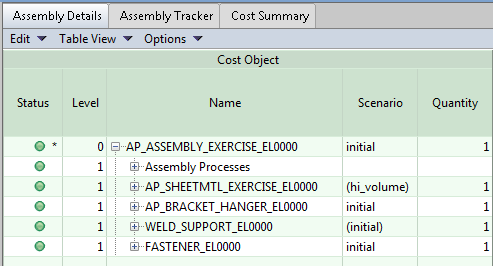
This shows that both AP_SHEETMTL_EXERCISE_EL0000 (which has a new scenario that is official) and WELD_SUPPORT_EL0000 (whose original "initial" scenario is official) are specified to use their official scenarios.
Subsequent costing in CAD Independent mode file-connected
If your component is connected to the relevant CAD file, aP Pro checks the CAD file for GCD changes made to that file since the current cost was saved.
Caution:
If your component is disconnected from the CAD file, aP Pro cannot detect GCD changes. The cost information is displayed as current and you cannot perform any operations that require regenerating GCDs.
If aP Pro detects no changes in the CAD file, the current costing information is displayed. The  icon in the Cost Outputs pane indicates that the cost is current.
If aP Pro detects changes in the CAD file and if the scenario is not specified to be “Inactive” and One Click Costing™ is as follows:
- Off: aP Pro immediately costs the component and displays the new cost information. (Disabling One Click Costing is the same as enabling auto-costing.)
- On: aP Pro displays the existing cost information, but the Cost Outputs pane is disabled and the
 icon indicates that the cost is not current. Click
  to cost the component.
To cost an inactive scenario based on the most up-to-date CAD changes, you must click  in the aPriori toolbar to refresh GCDs. (But you can always cost an inactive scenario with the existing GCD data.)
Subsequent costing in Direct Integration mode
aPriori checks the CAD system for GCD changes done since the current cost was saved.
- If aPriori detects no GCD changes, the current costing information is displayed. The icon in the Cost Outputs pane indicates that the cost is current.
- If aPriori detects GCD changes and if the scenario is not specified to be “Inactive”, then aPriori displays the existing cost information, but the Cost Outputs pane is disabled and the icon indicates that the cost is not current. Click to cost the component.
- To cost an inactive scenario based on the most up-to-date CAD changes, you must click in the aPriori toolbar to refresh GCDs. (But you can always cost an inactive scenario with the existing GCD data.)