Resolved Issues for EDC 2020-10
Electronics Data Collection Release Notes 2020-10
Part Number Ordering Issues Resolved
In previous releases, when you applied the Electronics Data Collection (EDC) filter to part numbers (PN) on a BOM, and then updated the data for one of the filtered parts, the order of the filtered PNs changed.
Now, when you update the information for a filtered part number, the order of filtered PNs does not change. Furthermore, the order of PNs in EDC, whether complete or filtered, now retains the order of PNs in the uploaded BOM.
(Inconsistency between Component Warning Icon Hover Text and Filter Value Resolved
There are three different match-status categories that apply to part numbers (PN) in the Electronics Data Collection application (EDC):
- No Match– EDC did not find a matching par in in silicon expert for this BOM line item.
-
Match – Action Needed:
- EDC found multiple matches so you must decide which match is correct.
- EDC found a match, but the data is incomplete so you must add the missing data manually.
-
Match – Complete – EDC found a match and the data is complete.
You can:
- Filter for all the part numbers that belong to a match-status category.
- Determine which category a part number belongs by hovering over the icon that appears next to the PN
- See the proportion of PNs that belong in each category by examining the match-status proportion graph.
In previous releases, the filter text, the icon hover text, and the label in the match-status proportion graph did not agree. aPriori has resolved this issue by using the consistent terminology for all labels in the UI.
For example, the figure shows that both the status icon hover text and the filter setting for Diode 2 are Match – Action Needed. The filter count indicator shows that there are 10 PNs in the category.
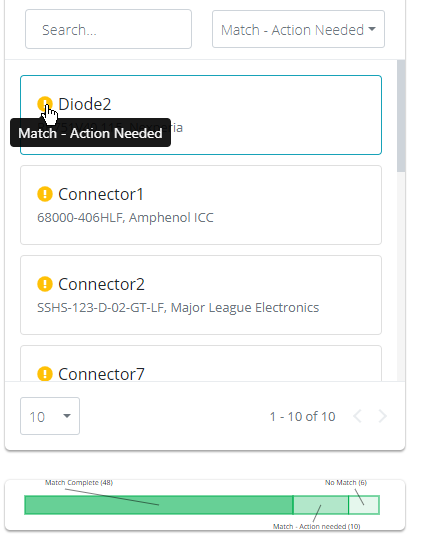
This enlarged image of the match-status proportion graph also shows that 10 PNs are in the Match – Action Needed category.
