Use case example
The out-of-box default settings are designed to make Access Control invisible to upgrading aPriori users.
If you decide to implement your own Access Control model, you will want to modify or remove the out-of-box settings and replace them with settings that reflect your model. Contact aP Pro Services for assistance developing a custom Access Control model for your site.
The following example environment is intended to give you an idea of how such a custom Access Control model could be designed and implemented.
Region-Based
Assume that you want to control access to resources based on a geographic breakdown of your organization. For example, only North American users should be able to view or interact with components or Digital Factories created in the North American (NA) region.
In this example, we assume that users can only belong to one region. However, if this is not true, we can use modifiers to tweak the model.
Here are some suggested steps that you could follow to implement this access control model:

- Create groups that reflect your geographic divisions. For example, "NA-users", "EMEA-users", and "Global-users".
- Create a group attribute called “Region” and set it appropriately for each group (for example, "NA" for the "NA-users" group, "EMEA" for the "EMEA-users" group, etc.)
- Also create a similar "Region" UDA for your component scenarios, and plan to coordinate these with a Digital Factory property such as Location or Description.
- Add your users to the appropriate groups.
- Set the "Region" UDA and the Digital Factory region property to the appropriate values to coordinate with the "Region" group attribute. (For more information about UDAs and using them with components and assemblies, see Managing user defined attributes). You will be comparing these values within permission rules, so you must ensure that the value strings are identical.
Next create permissions and associate them with the groups:
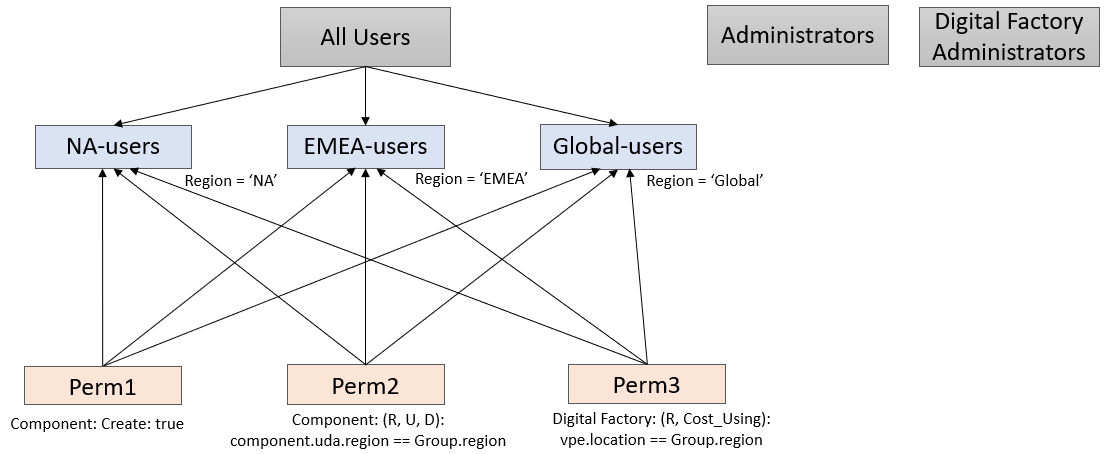
- Perm1: Component: Create: true
-
Perm2: Component: (R, U, D):
component.customAttributes.region == currentGroup.attributeValues.region -
Perm3: Digital Factory: (R, Cost_Using):
vpe.location == currentGroup.attributeValues.region
Note about roll-ups
If you have roll-ups, you should implement a consistent roll-up naming strategy that incorporates the region into the name. (Roll-ups currently cannot make use of UDAs.) For example:
NA_Rollup_XYZ, EMEA_Rollup_XYZ
Your permission rules must reflect this naming convention. For example:
Note about Digital Factories
In the simplest case, your regional groups might be the same as your Digital Factory locations. For example, all North American users could have the same access to the aPrioriUSA Digital Factory. But your North American region makes need to make use of separate Digital Factories for USA and Mexico.
If vpe.location values are not the same as the Region values, you might consider using a different Digital Factory property such as "Description", or even editing the default value of the "Location" property. Location is not used internally by aPriori, so if your site does not already depend on this property, you should be able to modify it as necessary.
You could then develop a rule such as:
Configuring Administrators
Setting up access control for administrators in multiple regions can be handled in a manner like the users shown in the previous sections. (This configuration is not necessary if all your administrators have access to all regions.)

- Create a group for administrators in each region, such as
NA-admins,EMEA-admins, andGlobal-admins - Add administrators to the appropriate groups.
- Assign the "Region" group attribute to each group and set it to reflect the region.
- Assign a Digital Factory property to the same Region values, as described in the previous section.
- Create different rules and associate them with the groups. For example, you might give more access rights to Digital Factories for administrators.
Extending the Example
You could extend the access control requirements of the previous example by adding project and role-based rules to the regions and adding life-cycle status. For assistance developing these kinds of Access Control models, please contact aP Pro Services.