Controlling the X-axis display
You can set the minimum and maximum bounds for the heat map x-axis and set values to be displayed along the axis. For example, to customize the x-axis display for hole diameter:
-
Open
configHeatMap.xmlin an editor and scroll down to the line defining the menu item you wish to suppress. For example,<HeatMapToolSpec name="holeDiameter" invertedGoodness="true" unit="Length" displayName="i18nMsg(holeDiameter)">The “invertedGoodness” attribute is a Boolean that allows you to reverse the relative desirability display of an increasing value. In cost management, increasing values are often negative: more cost, more waste, more material to be purchased, and so on; such increasing values are usually shown in the aPriori product with red arrows. However, sometimes increasing values represent a positive change: higher utilization, increased sales, etc. These can be represented by green arrows in the aPriori UI by setting
invertedGoodness="true". -
Inside the closing angle bracket for this line, insert the bounds that you wish to use for the x-axis. For example, shown in bold below:
<HeatMapToolSpec name="holeDiameter" invertedGoodness="true" unit="Length" displayName="i18nMsg(holeDiameter)"lowerBound=".25" upperBound="2.0"> -
Inside the closing
</HeatMapToolSpec>tag for this metric, add the labels you want to use along this axis. For example, when you finish, the entire section should resemble:<HeatMapToolSpec name="holeDiameter" invertedGoodness="true" unit="Length" displayName="i18nMsg(holeDiameter)" lowerBound=".25" upperBound="2.0"> <GroupingSpecs> <GroupingSpec name="i18n(designStandards)"/> </GroupingSpecs> <XAxisLabelSpecs> <XAxisLabelSpec value=".3" label="i18n(smallHole)"/> <XAxisLabelSpec value=".75" label="i18n(mediumHole)"/> <XAxisLabelSpec value="1.5" label="i18n(largeHole)"/> </XAxisLabelSpecs> </HeatMapToolSpec> -
Save the file.
- Go to
<apriori_install>\ext\project-management-plugin\macro\app\ConfigureHeatMap\Messagesand make a back-up copy ofmacroMessages.properties. - Open
macroMessages.propertiesin an editor and scroll down to the end of the file. -
Append the following lines to support the x-axis labels that you defined in
configHeatMap.xml: -
Save the file.
-
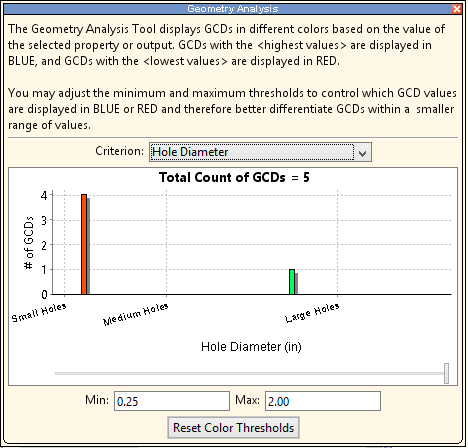
Restart aPriori . The x-axis for Hole Diameter should now resemble the following:
Heat map localization
The heat map is designed to support localization. The top section of configHeatMap.xml provides the following definition lines:
<messageBundles defaultBundle="macroMessages">
    <messageBundle baseName="macroMessages" filePath="messages/macroMessages.properties" country="" language="" variant=""/>
    <messageBundle baseName="macroMessages" filePath="messages/macroMessages_de_DE.properties" country="DE" language="de" variant=""/>
    <messageBundle baseName="macroMessages" filePath="messages/macroMessages_fr_FR.properties" country="FR" language="fr" variant=""/>
    <messageBundle baseName="macroMessages" filePath="messages/macroMessages_zh_CN.properties" country="CN" language="zh" variant=""/>
    <messageBundle baseName="macroMessages" filePath="messages/macroMessages_ja_JP.properties" country="JP" language="ja" variant=""/>
</messageBundles>
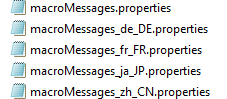
The messages subfolder contains a macroMessages.properties file, along with localized copies for each of the languages defined in configHeatMap.xml.
If your company has users in different locales, you should maintain configurations in parallel for all relevant languages.