Import from the Command Line
You can import previously-exported Digital Factory data from the command line.
Configuration
This requires some configuration as explained below.
-
Open the following file in a text editor:
<apriori_install_dir>\bin\importVpeDataFromExcel.propertiesEdit the lines highlighted below as necessary:
<MadCap:concept term="Digital Factory" xmlns:MadCap="http://www.madcapsoftware.com/Schemas/MadCap.xsd" />templateFile=ext/project-management-plugin/macro/ide/importMultipleDigital FactorysData.xml
inputs.vpeFolder=<Enter source folder here>
inputs.availableDigital Factorys=CSL (asList(asMap('name', '<Enter xls or xlsx file name for the imported Digital Factory here>')))
inputs.importDigital FactoryLevelData=true
inputs.importMaterials=true
inputs.importMachines=true
inputs.importToolShops=true
inputs.importLookupTables=false
inputs.replaceRows=false
Basic example
The edited file below will import "aPriori USA" Digital Factory data from the Excel spreadsheets located in
D:/aaa_tmp/000_vpe_export_folder. The spreadsheet filename you specify in the third line must be that of the index file -- the one that includes only the Digital Factory name, not a process group name.templateFile=ext/project-management-plugin/macro/ide/importMultipleDigital FactorysData.xml inputs.vpeFolder=D:/aaa_tmp/000_vpe_export_folder inputs.availableDigital Factorys=CSL (asList(asMap('name', '<span class="mc-variable General.aPriori variable">aPriori</span> USA.xls'))) inputs.importDigital FactoryLevelData=true inputs.importMaterials=true inputs.importMachines=true inputs.importToolShops=true inputs.importLookupTables=false inputs.replaceRows=falseNote:
The vpeFolder path must use forward slashes ("/"), not Windows back slashes ("\").
Advanced example The edited file below additionally includes lookup tables, and also imports multiple Digital Factories ("aPriori USA" and "aPriori Mexico"). It also specifies that data from the spreadsheet should overwrite any data in the Digital Factory with the same name:
templateFile=ext/project-management-plugin/macro/ide/importMultipleDigital FactorysData.xml inputs.vpeFolder=D:/aaa_tmp/000_vpe_export_folder inputs.availableDigital Factorys=CSL (asList(asMap('name', '<span class="mc-variable General.aPriori variable">aPriori</span> Mexico.xls'),asMap('name', '<span class="mc-variable General.aPriori variable">aPriori</span> USA.xls'))) inputs.importDigital FactoryLevelData=true inputs.importMaterials=true inputs.importMachines=true inputs.importToolShops=true inputs.importLookupTables=true inputs.replaceRows=true -
To import lookup tables: Set
inputs.importLookupTables=``truein the properties file. This allows lookup table data to be imported.-
If you exported from the command line, by using the
exportVpeDataFromExcel.propertiesfile withinputs.importLookupTables=true, the lookup tables will be exported as part of the Excel sheets containing the data. They can then be imported alongside the rest of the Digital Factory data, as part of those spreadsheets that were previously exported. See Export from the Command Line. -
If you exported from the Digital Factory Manager UI, by using File > Export > Digital Factory Lookup Tables to Excel, the lookup tables will be exported independently of the data. The Excel spreadsheets will only contain lookup tables and will have the same names as those containing Digital Factory data, so they cannot both be imported at the same time. See Export Digital Factory Data to a Spreadsheet.
-
Run Import
-
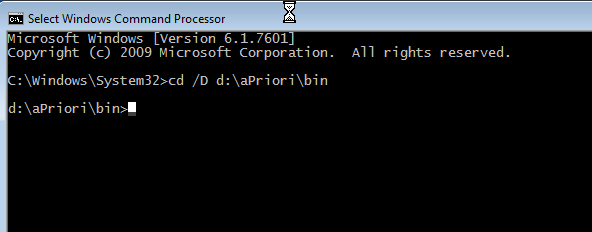
Open a command console and change to the aPriori installation bin directory. In this example, aPriori is installed at the root of the D: drive. Adjust as necessary for your installation.
-
Execute the following command line, substituting your actual values for the aPriori installation directory and your login credentials:
runMacro <apriori_install_dir>\bin\importVpeDataFromExcel.properties <your_apriori_login> <your_apriori_password>You must specify the complete aPriori installation path. If you specify a relative path such as
.\importVpeDataFromExcel.properties, the command will fail. -
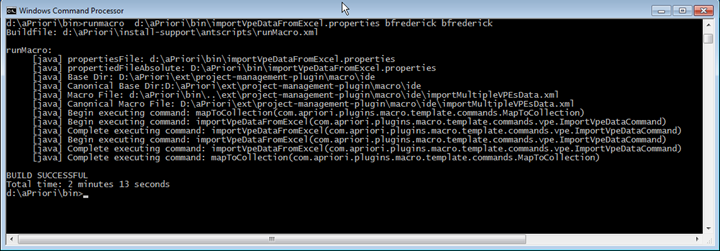
As the import command runs it displays status on the console. Watch for error messages -- most common errors are due to back slashes in the properties file and relative path names in the command line.
-
When done, your Digital Factory(s) should contain the data from all the Excel files.
Note:
To see the new Digital Factory data after importing using the command line, close the Digital Factory, then click File > Refresh Database Connection in the main window toolbar.