SOLIDWORKS™
aPriori supports importing PMI from SOLIDWORKS™.
aPriori does not support the import of virtual thread/tap PMI from SOLIDWORKS™.
See also STEP Support.
Note:
aPriori supports extracting surface roughness PMI from files saved with SolidWorks 2026 or later. aPriori reads Ra (arithmetic mean roughness, SolidWorks Surface Finish Field 1) and Rz (mean roughness depth, Field 6). To use this feature, ensure roughness annotations in SolidWorks are semantically defined; each annotation must be explicitly associated with at least one surface in the model. Annotations not linked to specific surfaces cannot be read. SolidWorks 2026 or later is required; earlier versions are not supported for roughness PMI extraction.
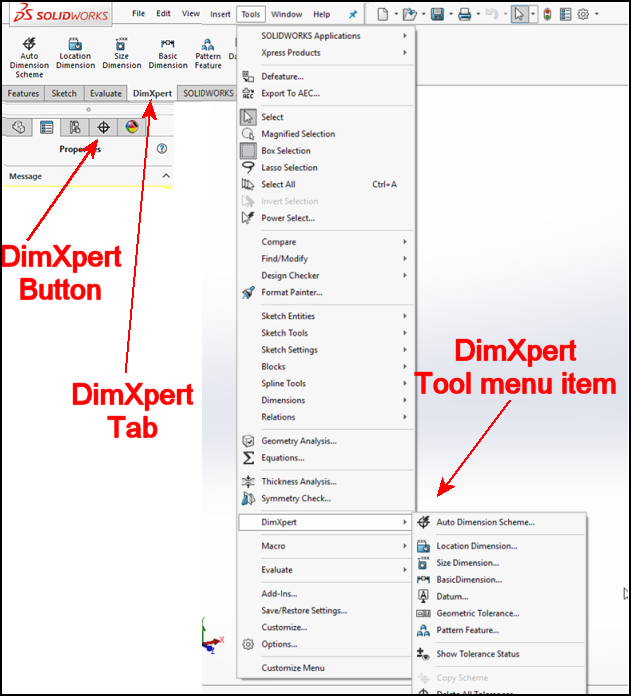
The following information is based on SOLIDWORKS™ 2016 and 2017. The primary way to create PMI items in SOLIDWORKS™ is to use the DimXpert tool, which enables you to create dimensions in 3D space on the 3D model (similar to creating 2D dimensions on a 2D drawing).
DimXpert does not enable you to create different views with only certain dimension shown. That is done with SOLIDWORKS™ MBD. The dimensions and annotations that DimXpert creates are not driving dimensions, but driven dimensions. They are not created when the features are created.
- Open the model you want to dimension in SOLIDWORKS™.
-
Either click the DimXpert tab or click the Tools > DimXpert menu item.
-
Use the options on the toolbar or on the menu to create PMI. However, note that not these options create semantic PMI. The following table identifies which options create semantic PMI.
Item Type Sematic? Dimensions Yes Datums Yes Geometric Tolerances Yes Datum Targets No Notes (including thread Callouts) No Surface Finish Symbols No Balloons No Weld Symbols No