Managing wage grade associations
You manage wage grade associations for a process group with the Wage Grade Associations table. The table allows you to assign a wage grade to a process (and thereby assign that wage grade to all the machines for the process) or assign a wage grade to an individual machine.
Alternatively, you manage wage grade associations with the machine table for a process or with the Wage Grade Name machine property for an individual machine.
Viewing the Wage Grade Associations table
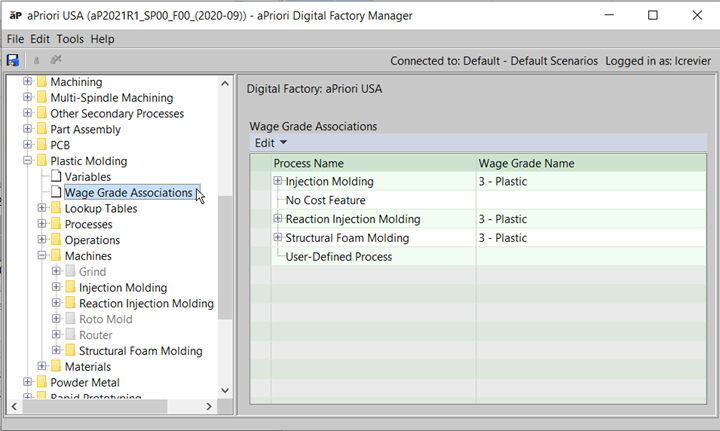
In the navigation pane of the Digital Factory Manager, expand the process group whose table you want to view, and click Wage Grade Associations.
The process group’s Wage Grade Associations table appears:
Assigning wage grades to processes
- In the Wage Grade Associations table, select the process to which you want to assign a wage grade. Assigning a wage grade to a process effectively assigns that wage grade to all the process’s machines.
-
Double click the cell in the Wage Grade Name column for the selected row and select the desired wage grade from the drop-down menu.
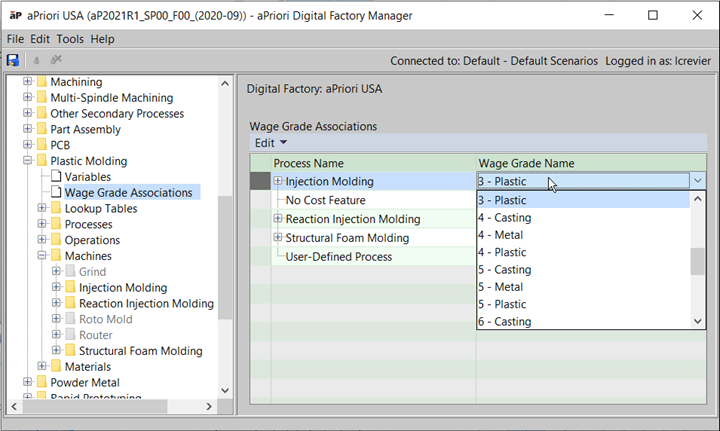
Figure: Wage grade associations -
When you are done assigning wage grades, do one of the following:
-
For each modified process, clear overrides:
In the navigation pane, right click the node under machines for the process you modified, and select Clear Labor Rate Overrides.
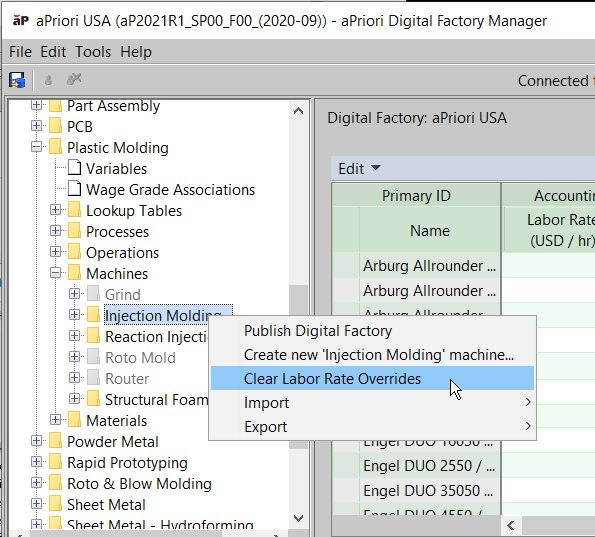
Figure: Clear overrides Alternatively, in the machine table for each modified process, right click anywhere in the Labor Rate column, and select Clear Labor Rate Overrides.
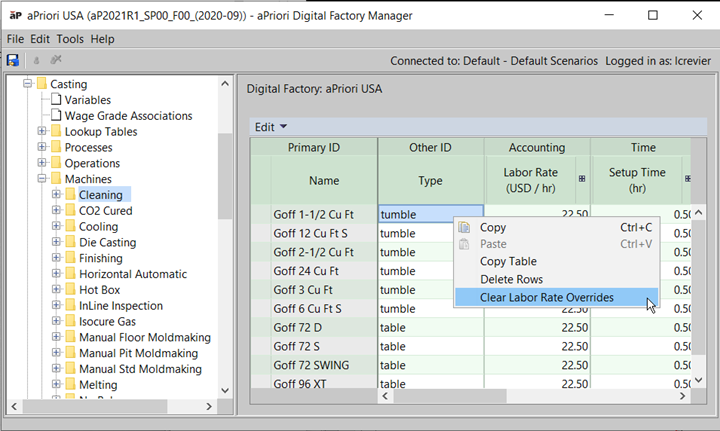
Figure: Clear Labor Rate Overrides -
Clear overrides for the entire Digital Factory:
Right click the top-level node in the navigation pane and select Clear Labor Rate Overrides.
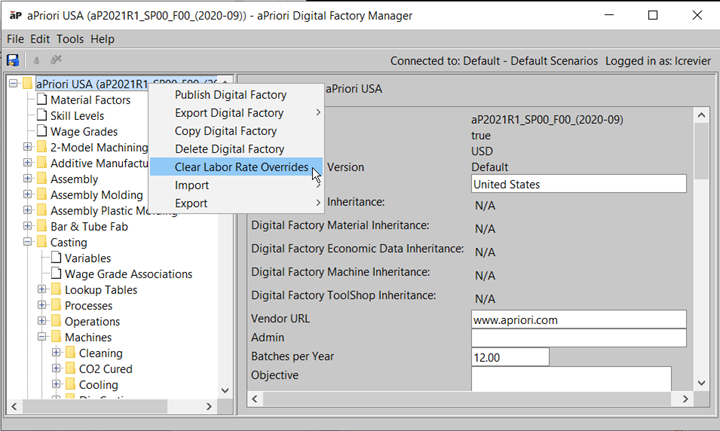
Figure: Clear Labor Rates Overrides
-
-
Click OK in the Clear Labor Rates Overrides dialog. aPriori updates the Labor Rate field for every machine of the modified process or processes.
- Select Publish Digital Factory from the File menu or click the Publish icon in the toolbar.
Assigning wage grades to individual machines
his is only necessary if you want a machine to have a different wage grade from the one established for the Process.
-
In the Process Name column of the Wage Grade Associations table, expand the process for the machine to which you want to assign a wage grade.
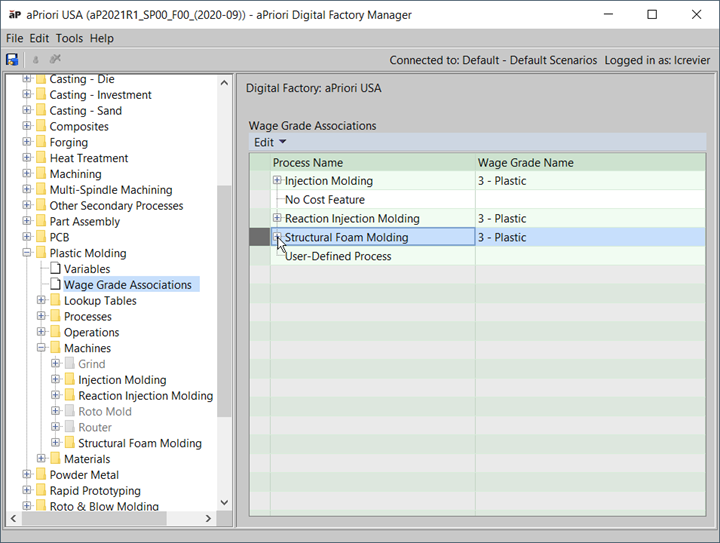
Figure: Assign Wage Grades -
Select the machine to which you want to assign a wage grade.
-
Double click the cell in the Wage Grade Name column for the selected row and select the desired wage grade from the drop down menu.
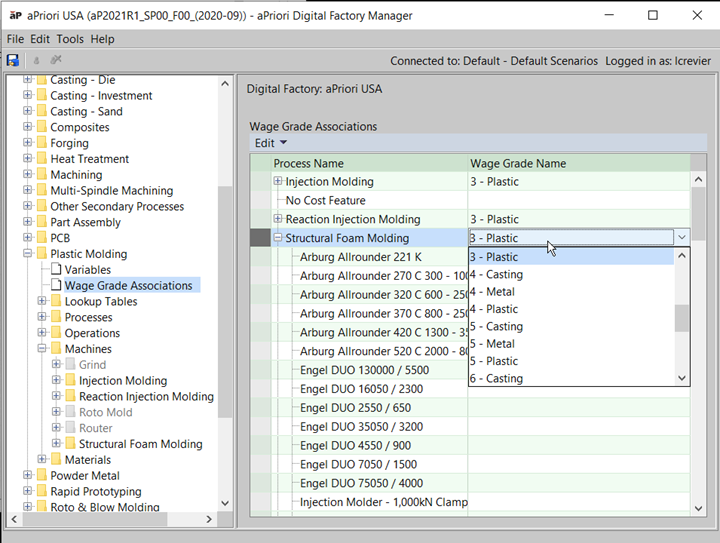
Figure: Selecting the desired wage grade -
When you are done assigning wage grades, do one of the following:
-
Clear overrides for each modified machine individually:
Right click the machine you modified in the machine table for the machine’s process and select Clear Labor Rate Overrides.
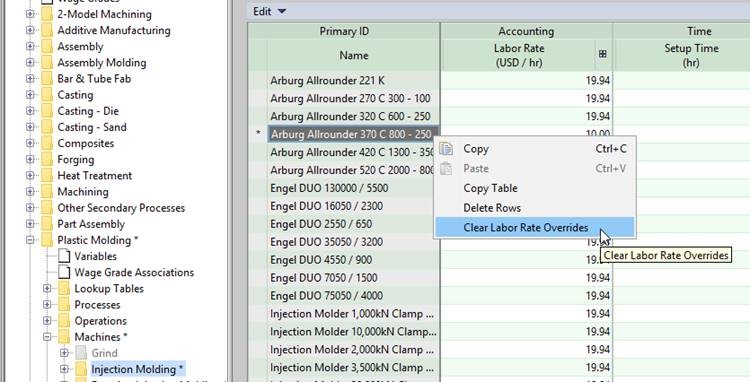
Figure: Clear labor rate overrides -
Clear overrides for each process that has a modified machine:
In the navigation pane, right click the node under machines for the process you modified, and select Clear Labor Rate Overrides.
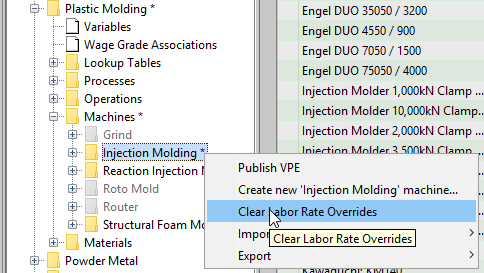
Figure: Clear overrides for each process -
Alternatively, in the machine table for the modified process, right click anywhere in the Labor Rate column, and select Clear Labor Rate Overrides.
Figure: Clear overrides by right clicking -
Clear overrides for the entire Digital Factory:
Right click the top-level node in the navigation pane, and select Clear Labor Rate Overrides.
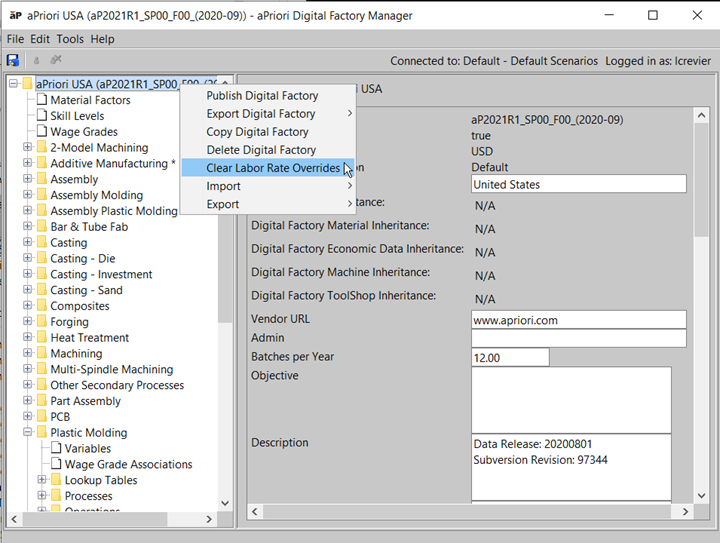
Figure: Right click the top-level node and clear overrides
-
-
Click OK in the Clear Labor Rates Overrides dialog. aPriori updates the Labor Rate field for every machine to which you assigned a wage grade.
-
Select Publish Digital Factory from the File menu or click the Publish icon,
 , in the toolbar.
Note:
You can also assign a wage grade to a machine by selecting the machine in the navigation pane and editing the machine’s Wage Grade Name field.
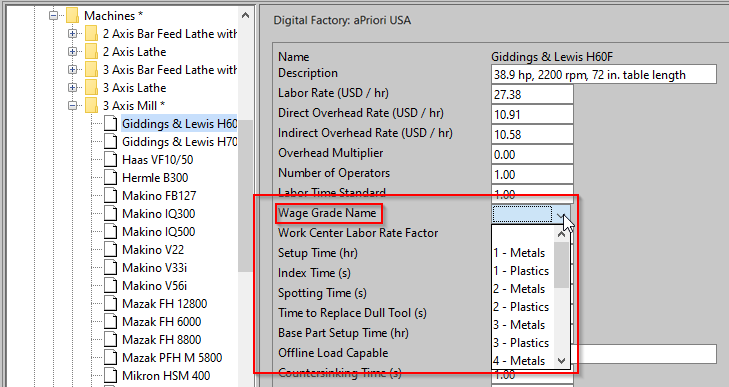
Figure: Publish Digital Factory You can also assign a wage grade to a machine by editing the machine’s Wage Grade Name field in the machine table for the machine’s process group.
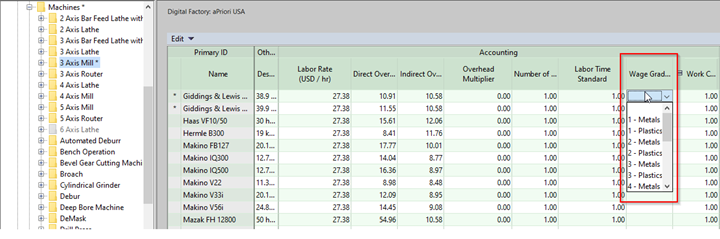
Figure: Assigning wage grades to a machine In either case, aPriori updates the Labor Rate field once you have cleared Labor Rate overrides.