Updating the Component Library lookup tables
It is important that you update both the Assembly and User Guided process groups.
- in Excel, open the source file that contains the data you wish to import into your component library.
- Open the exported lookup table file for the Assembly process group.
-
Figure: Click on the component Library sheet.
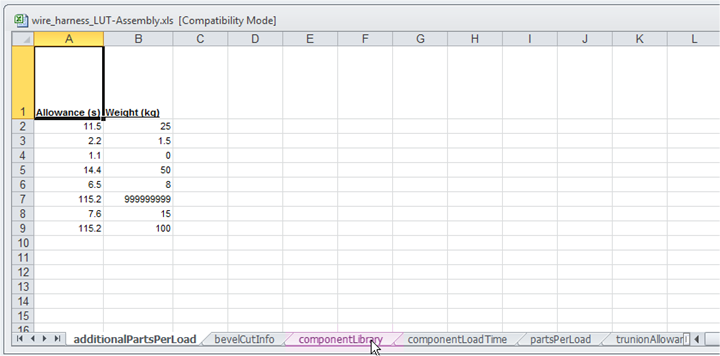
Figure: Component library sheet -
Ensure that the columns in the import file spreadsheet match the columns in the lookup table spreadsheet exactly. If they do not, modify (or regenerate) the import file so that they do.
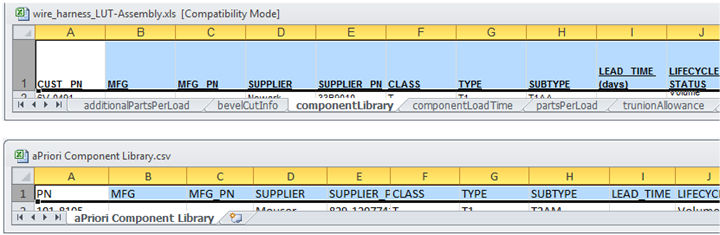
Figure: Matching columns from the import file When you need to remove rows when editing a lookup table spreadsheet, it is critical that you do not leave empty rows. If you select one or more rows and press the Delete key, you remove the contents of the cells but leave the empty rows in place. This will cause problems when you import the spreadsheet into aPriori. Therefore, use the right-mouse-click Delete option, and ensure that the rows are removed as well as their content.
-
Carefully copy the cells from the import spreadsheet and paste them into the corresponding cells in the Assembly componentLibrary sheet. If you are replacing all the information in your Component Library, make sure that no old data remains in the target spreadsheet after the Paste. If you are adding new information, make sure that you do not overwrite data that you wish to keep.
-
You must update the User Guided exported file with the same information. You could simply repeat the previous three steps, but a more efficient method would be to use the Excel Copy command: open the User Guided workbook, delete the componentLibrary tab, then copy the updated tab from the Assembly workbook into User Guided.
It is important that you update the componentLibrary for both Assembly and User Guided.
-
Save and close both files when they have been successfully updated with the data from the import file.
Reimport the Component Library tables
To re-import the Component Library tables:
- Return to the Digital Factory Manager and click File > Import > Digital Factory Lookup tables from Excel.
- Navigate to and click only the index Excel file. (This is the one without a process group embedded in its name; in this example, "wire_harness_LUT.xls".)
-
Click Open.
If aPriori displays an error message when you try to import, double-check that you have not selected one of the process group files or another incorrect spreadsheet. You must select the index spreadsheet.
-
If replacing existing data with updated data, specify Replace. If you are adding data about new components, specify Add to existing data.
- Optional: Enter a comment for a log entry describing the update.
- Click the Publish Digital Factory icon (
 ) when done.
If you are updating the component library for both Wire Harness and PCBA, you must repeat this entire process for the other Digital Factory.