Managing unit system settings
You can change unit system settings in the System Administrator just as you would with aP Pro; see Managing Unit System Settings in the aP Pro User Guide. With the System Administrator, you can also define new unit systems. When they are defined, the new unit systems will be available for aP Pro users.
Define a new unit system
-
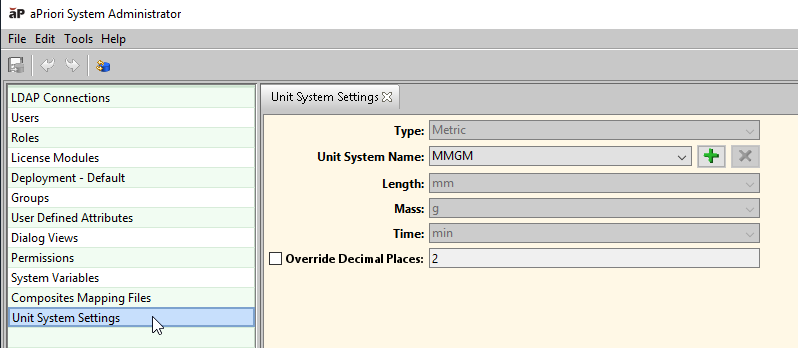
Select Unit System Settings from the navigation pane. The Unit System Settings tab appears.
-
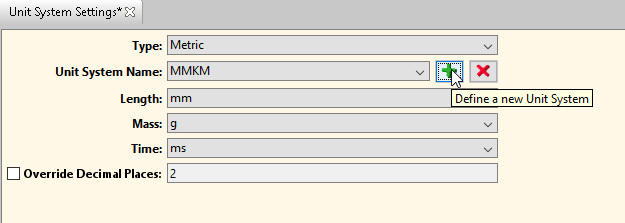
Click the plus icon,
 .
.
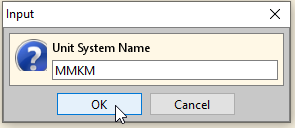
An Input dialog appears with the Unit System Name field.
-
Enter a name for the new unit system and click OK.
-
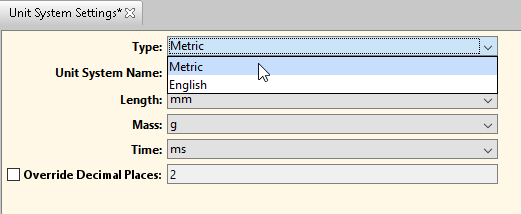
From the Type dropdown list, select either English or Metric.
-
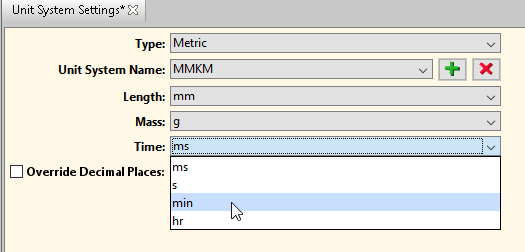
From each of the dropdown lists for the Length, Mass, and Time fields, select a unit.
-
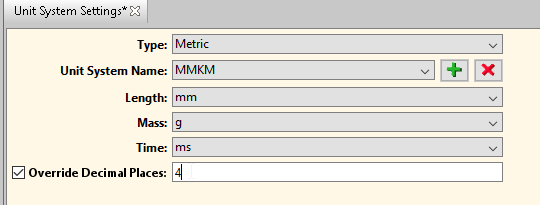
To override the number of decimal places used in the display of values, check the Override Decimal Places checkbox, and enter a value into the Override Decimal Places field.
-
Click the Publish icon,
 .
.You can delete a unit system that you’ve created: select the unit system in the Unit System Name field, and then click the red x icon,
 .
.For more information, see Managing Unit System Settings in the aP Pro User Guide.