Launch aP Pro
You can launch aP Pro directly on your desktop (in CAD-independent mode), or from a CAD application. If you use Creo, you can also launch aP Pro in Direct Integration mode from that CAD application.
You can also launch the aP Pro Ticker, either in CAD-independent mode or in Direct Integration mode.
Info:
For information about aP Pro modes, see Automatic Geometry Updates.
Launch aP Pro on your Desktop
To start aP Pro On-Premise, click on the aP Pro icon,  . on your desktop.
Launch aP Pro from the Cloud
You can login to aP Pro in the Cloud, and use it as a Cloud application, accessible via a web browser, without needing to install any applications or software locally.
See Access aP Pro in the Cloud.
Launch aP Pro from a CAD application
If you have the relevant CAD application plugin installed, you can launch aP Pro from a CAD application, by clicking on the relevant Cost in aPriori option from that CAD application. For example for CATIA V5, select Tools > Cost in aPriori > Cost in aPriori.
Tip:
To make the aPriori menu or button visible in your CAD application, use the Tools or View menu or tab in the CAD application.
Launch aP Pro in Direct Integration mode
A Creo CAD application can be integrated directly with aP Pro during the aP Pro installation. In this case:
-
Start your Creo application.
By default, the aP Pro Ticker starts automatically
-
To switch to aP Pro Desktop, click the
 button in the aP Pro Ticker.
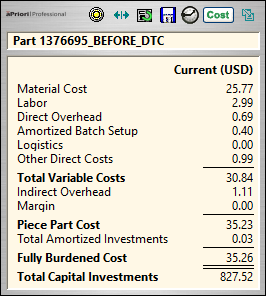
Launch the aP Pro Ticker
The aP Pro Ticker is a limited feature interface that displays in a small window:
Info:
You can switch between the Ticker and the full view of aP Pro, but you cannot open both the Ticker and the full view simultaneously.
- Click
 on your Windows desktop or use the Windows Start menu to start aP Pro.
 - Open a component. See Opening a component in aP Pro.
- To open the Ticker, click the ticker button,
 , on the top right of the aP Pro toolbar.