Export a Digital Factory
Introduction
You can export an entire Digital Factory to either a compressed (.zip) file, or a Excel (.xls) file.
For example, this can be used to:
- Make quick group updates to data (such as labor rates) using an external editor, then re-import that data to the Digital Factory.
- Perform periodic data maintenance or updates in your staging environment, and then copy the updated Digital Factory back to your production environment.
- Copy a Digital Factory to another server.
- Provide a copy of the Digital Factory to aPriori Customer Support regarding an issue.
- Make a backup of the Digital Factory before making changes.
Export Process
- From the Digital Factory Toolset window, select either File > Export > Digital Factory to Excel or File > Export > Digital Factory to Zip
(You can also use these options from a currently open Digital Factory to export that Digital Factory. See Open a Digital Factory.) - Select the Digital Factory to export from the list shown.
- If your Digital Factory is an overlay (inheriting from other Digital Factories), you are prompted to export either the entire "bundle" (the overlay Digital Factory plus all the Digital Factories from which it inherits), or just the overlay Digital Factory itself. See Inheritance and Digital Factories. Note: You can only export an overlay Digital Factory as a Zip file.
-
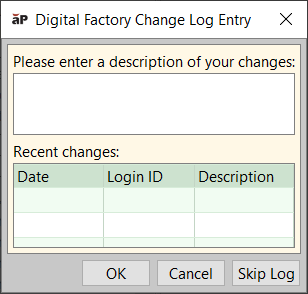
Select the folder to contain the exported Digital Factory file, enter a name for the file, and click Save to display the Digital Factory Change Log Entry window. (Changes to the file name do not change the name of the exported Digital Factory itself.) If exporting using aP Pro Cloud, export to the Temporary Files folder to avoid potential performance issues.
-
In the Digital Factory Change Log Entry window, describe the changes made - for example, if you export a staging environment Digital Factory to import it into a production environment, you should list the changes made from the previous production version, to make users aware of your updates:
 6. Click OK to export the file.
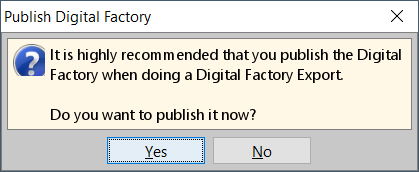
You can also publish the Digital Factory that you are exporting if prompted
A single .vpe.zip or .xls file is created.