Managing skill levels
You manage skill levels for a Digital Factory with the Skill Levels table.
Viewing the Skill Levels table
Click Skill Levels in the navigation pane of the Digital Factory Manager.
The Skill Levels table appears:
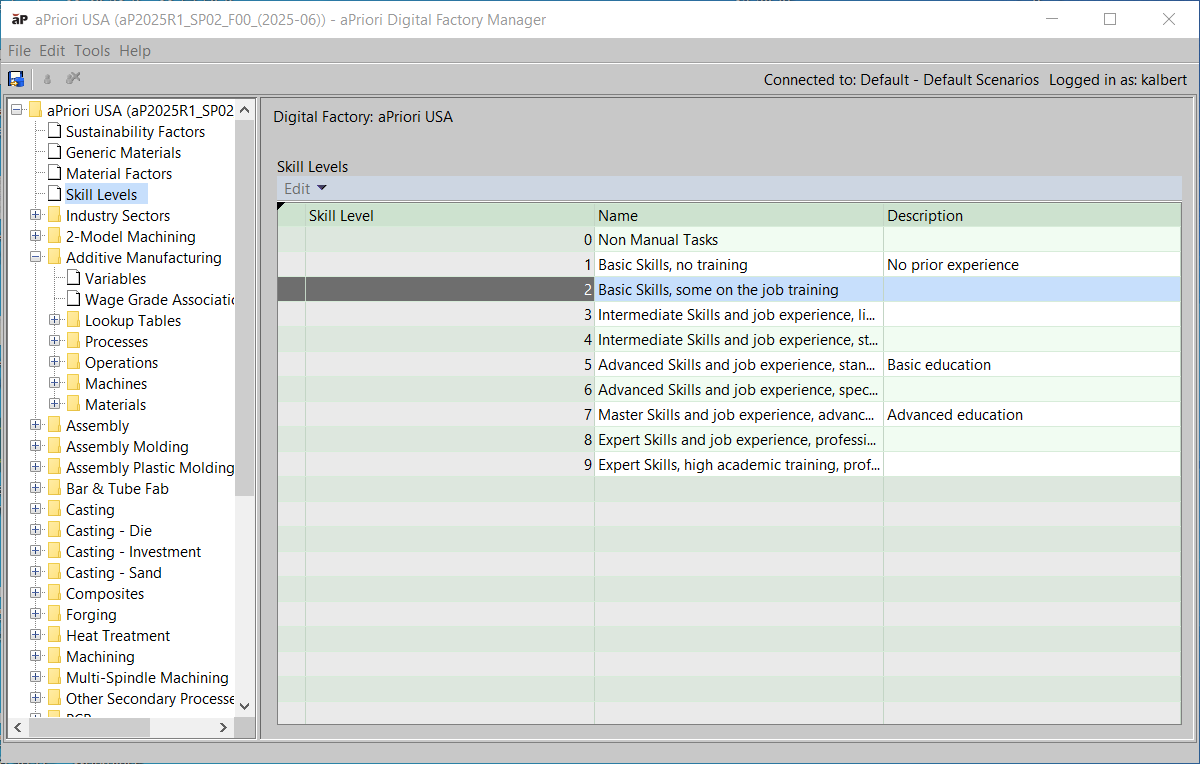
Each row of the table defines a skill level.
Editing a skill level
- For each cell of the Skill Levels table that you want to edit, double click inside the cell, and modify the text.
- When you are done editing the table, select Publish Digital Factory from the File menu or click the Publish icon in the toolbar.
Adding a skill level
-
Right click Skill Levels or a row of the Skill Levels table, and select Add new Skill Level…
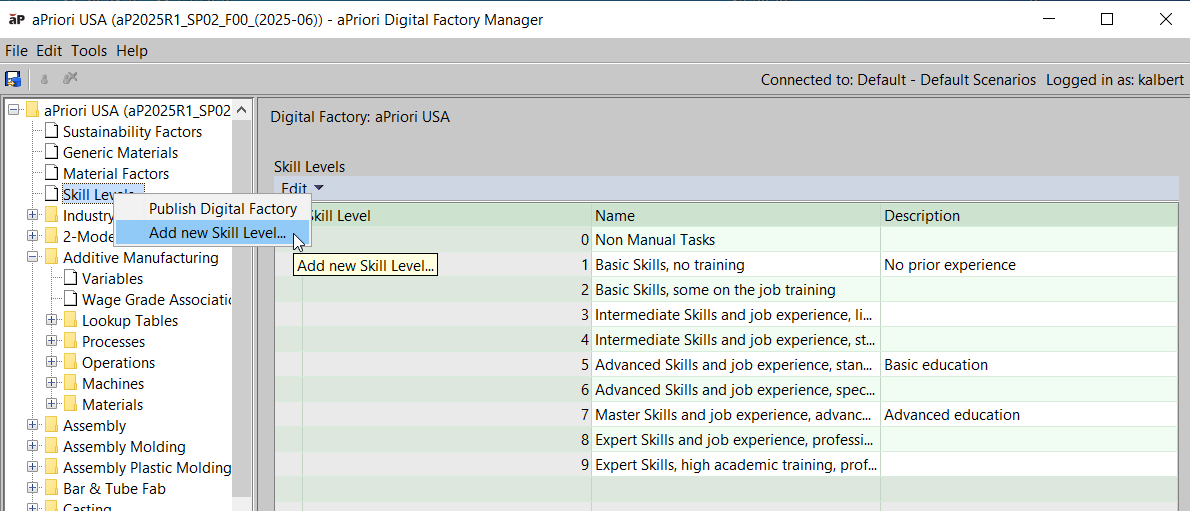
The New Skill Level dialog appears:
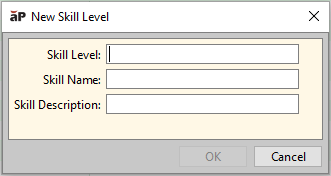
Figure: New skill level dialog -
Enter a positive integer in the Skill Level field. Do not enter a number that already appears in the Skill Level column of the table. Optionally, add text to the Skill Name and Skill Description fields.
- Click OK. The new row appears in the table.
- When you are done editing the table, select Publish Digital Factory from the File menu or click the Publish icon in the toolbar.
Deleting a skill level
- Right click a row of the Skill Levels table and select Delete Rows.
- When you are done editing the table, select Publish Digital Factory from the File menu or click the Publish icon in the toolbar.
Deleting multiple skill levels
- Select multiple rows by clicking a row and ctrl-clicking additional rows. Alternatively, select a range of rows by clicking the row at the beginning of the range and shift-clicking the row at the end of the range.
- Right click one of the selected rows and select Delete Rows.
- When you are done editing the table, select Publish Digital Factory from the File menu or click the Publish icon in the toolbar.