Example: Costing Failures
This example shows how to locate and resolve a typical error after you cost a part in aP Pro.
Step 1: Review Error Messages
When costing fails (and the Cost Summary tab has no populated values), look for error messages in:
- Validation tab
- Manufacturing Process pane
- GCD pane
In this example, an error message appears in the Validation tab:
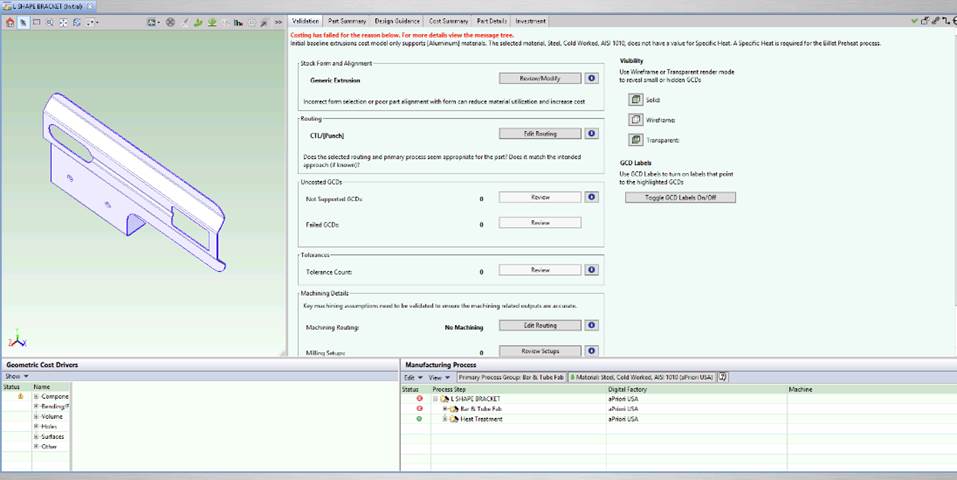
The message shows that the costing has resulted in failure and describes the cause:

For the Bar & Tube process group, baseline extrusions only support Aluminum materials.
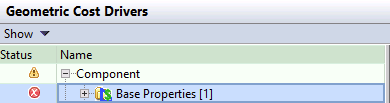
This error is also reflected by status icons that appear in the GCD pane and the Manufacturing Process pane

Step 2: Resolve the Error with a New Scenario
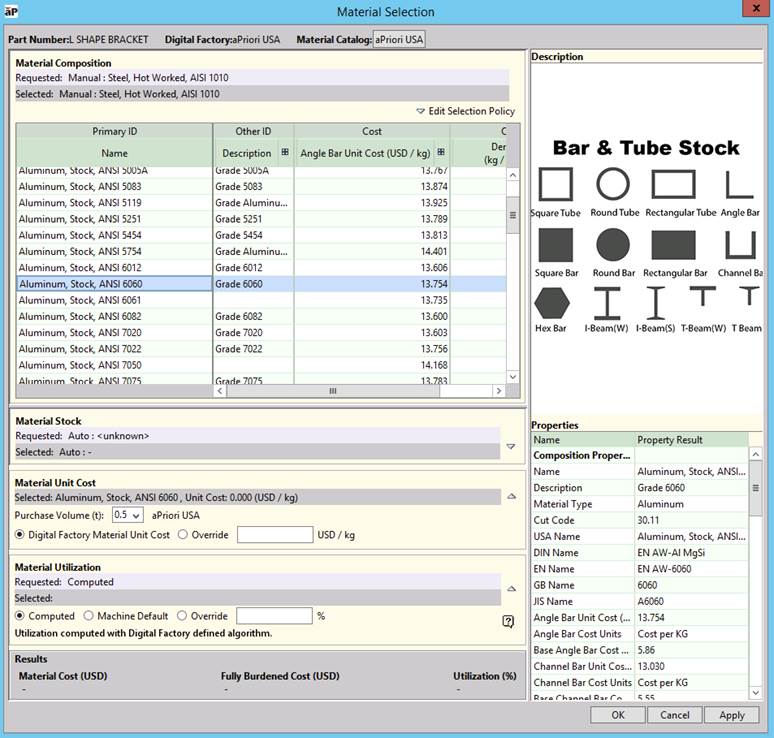
To resolve the error, change the baseline extrusion to point to an Aluminum alternative. To do this, create a scenario to use Aluminum, Stock, ANSI 6060:
-
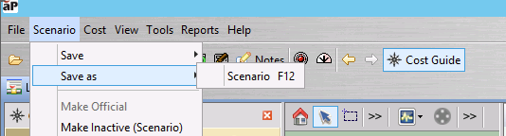
Click Scenario > Save as > Scenario from the main toolbar.
-
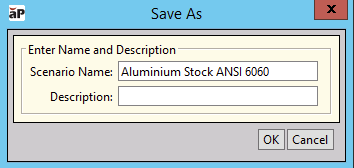
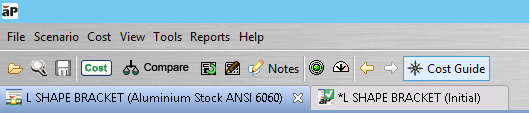
In the Scenario Name field, type Aluminum Stock ANSI 6060 and click OK.
A new tab is created to reflect the new Scenario:
-
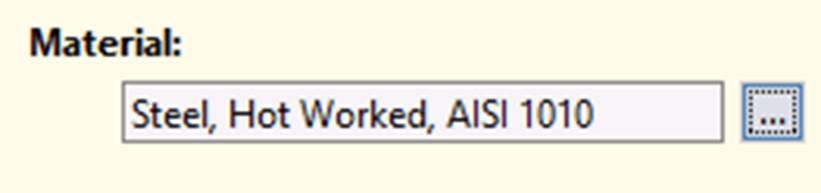
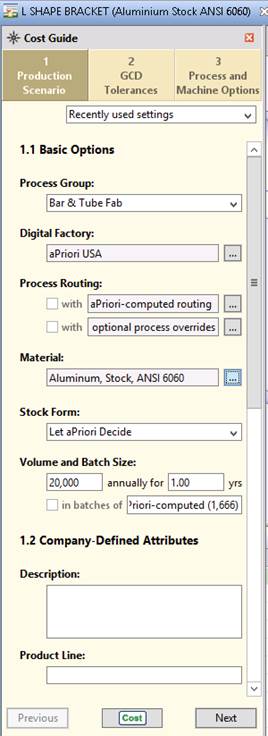
In this new Scenario tab, you must set the material choice to Aluminum Stock ANSI 6060.
Click the ellipsis button beside the current Material Selection within the Cost guide.
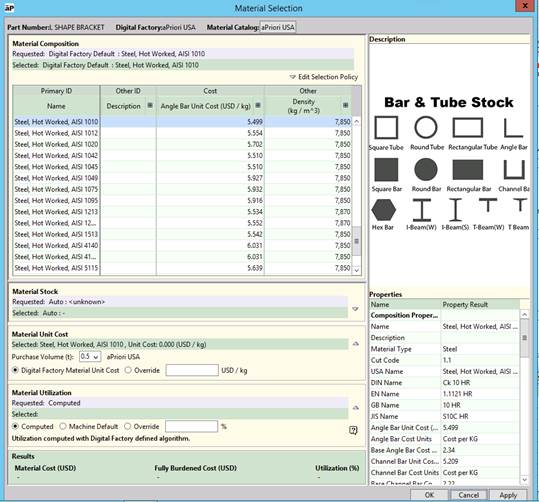
This opens the Material Selection library.
-
Select Aluminum ANSI 6060 and click OK.
-
Cost the new Scenario.
Step 3: Observe the Newly Costed Scenario
Look at the Validation tab within the newly costed Scenario; the original error message no longer appears.
However, a new error message appears:

Step 4: Understand the Second Error message
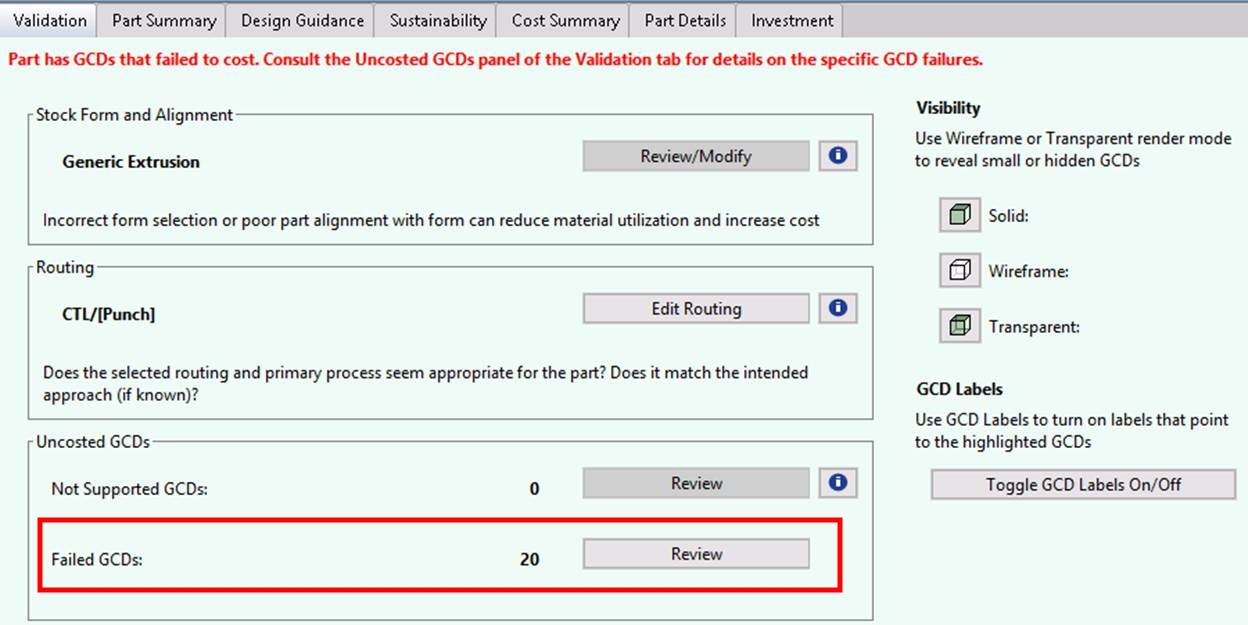
This time, the part in question has failed to cost due to failed GCDs (Geometric Cost Drivers). To understand which GCDs have failed:
-
Navigate to the Failed GCDs section in the Uncosted GCDs section of the Validation Tab.
-
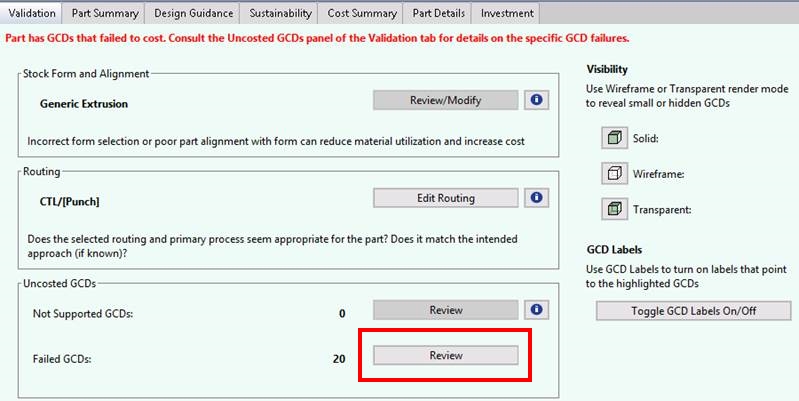
Click Review for more advice on the Uncosted GCDs.
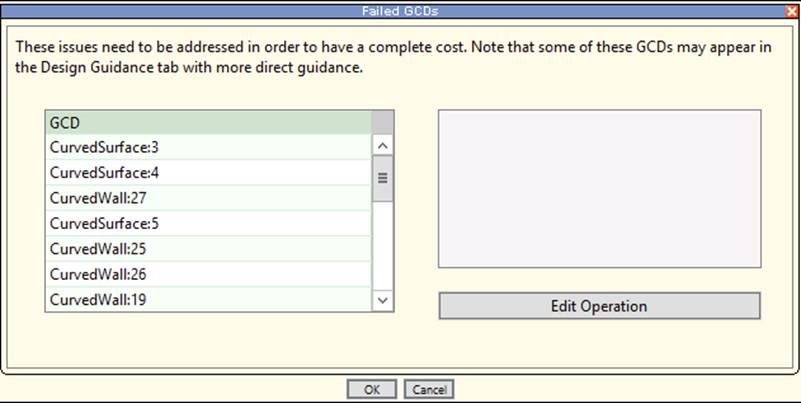
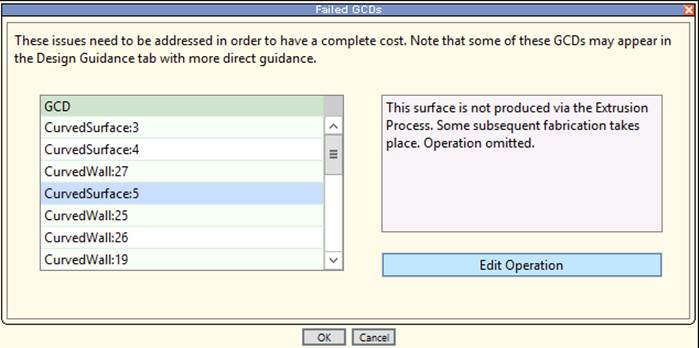
Notice all the GCDs listed that will need to be addressed before a complete cost can take place.
-
Click on CurvedSurface:5 to see a description of the issue:
-
Click Edit Operation to open the Operation Sequence Selection window, showing a graphical representation of the issue in relation to the Process Routing, and also including the
status icon on the As Extruded operation, indicating the failure: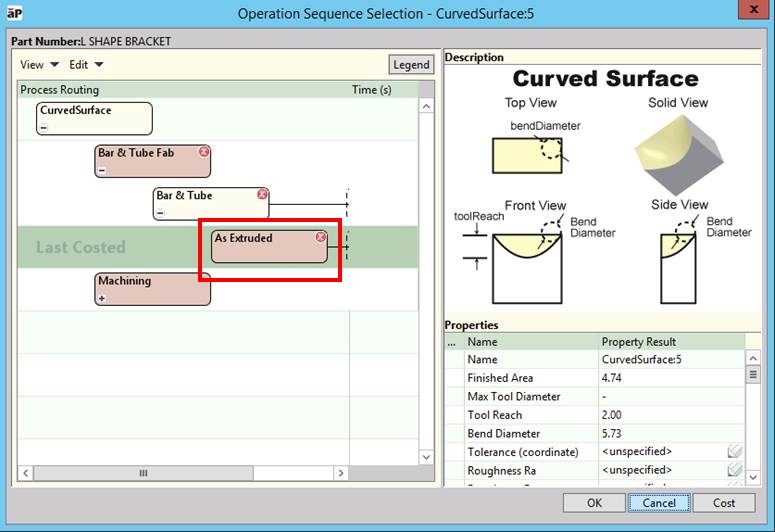
-
Click Cancel to exit the Operation Sequence Selection, then Cancel again to exit the Failed GCDs dialog.
Next steps
This background information may be enough to allow you to identify and resolve the main issue. If not, you can view more detailed message information with the Show Messages panel.
View Show Messages
-
In the main menu bar, click View > Show Messages :
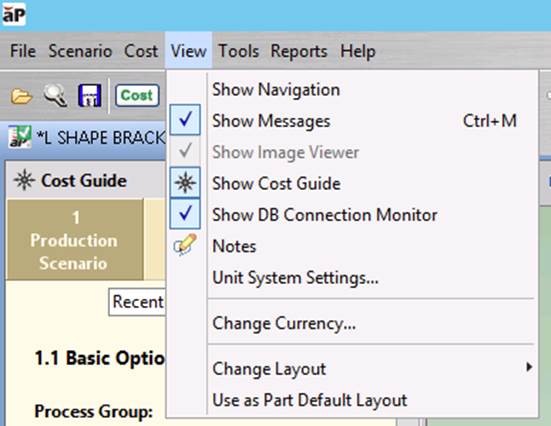
This opens the message tree on the right of your screen, showing the most recent costing information at the top of the list:
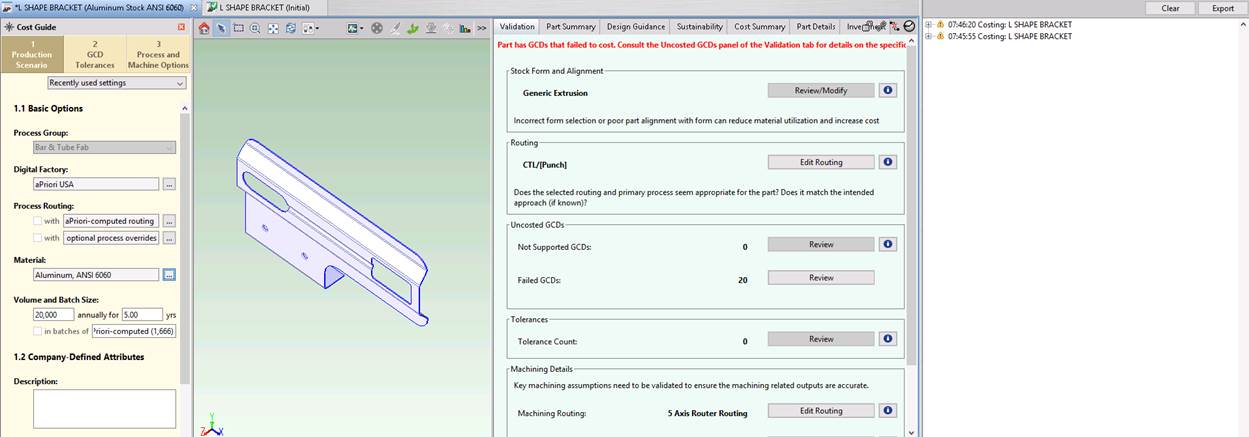
In this example, the caution symbol shows a costing that is calculated but has uncosted GCDs:

-
Click the plus icon beside the caution symbol to view a full list of sub messages:
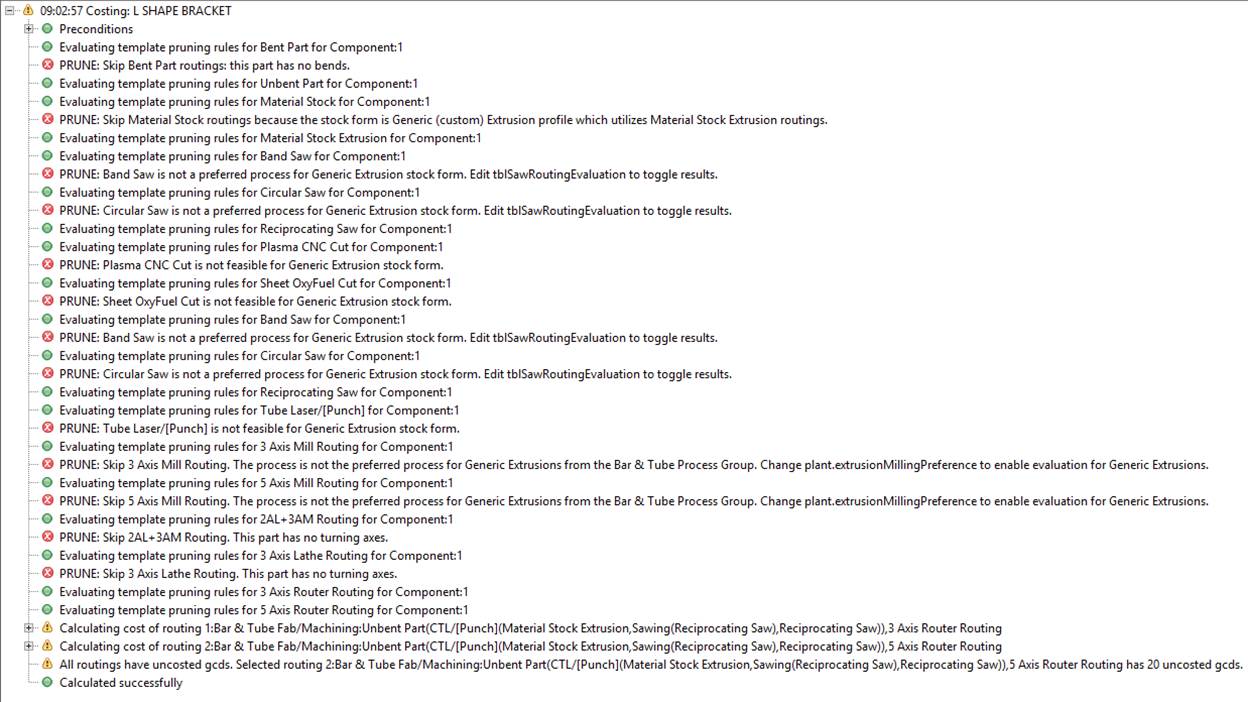
These messages show how the aPriori software has tried to work through all the rules for the selected process group.
-
Scroll down to the last message marked by a caution symbol:

The phrase ‘All routings have uncosted gcds’ means no routing in this process group is appropriate for manufacturing this CAD model. This often indicates that you should consider selecting a different Process Group.
See View Status Messages for more information.
Deciding on a Process Group
For advice on identifying the best process group, use the decision tree below:
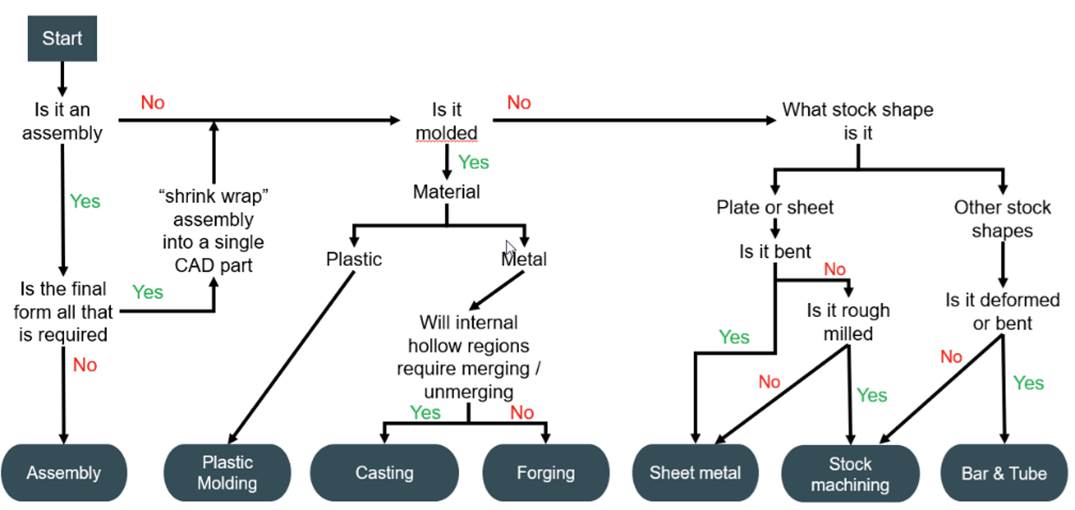
For this example's part (an L shape bracket), the decision tree indicates that you should try the Sheet Metal process group to remove errors.
Using the Sheet Metal Process Group
-
Create a new scenario for the Sheet Metal process group:

-
Update the Process Group to Sheet Metal, then click Cost:
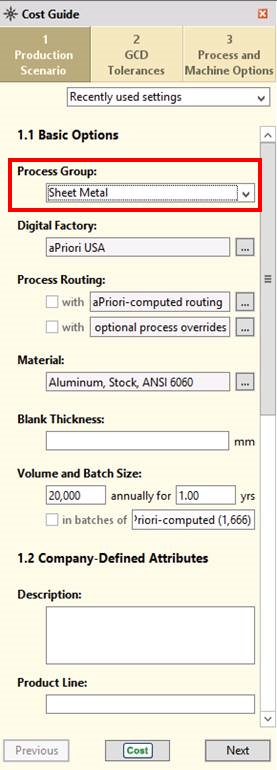
Notice, there are now no error messages in the Validation Tab.
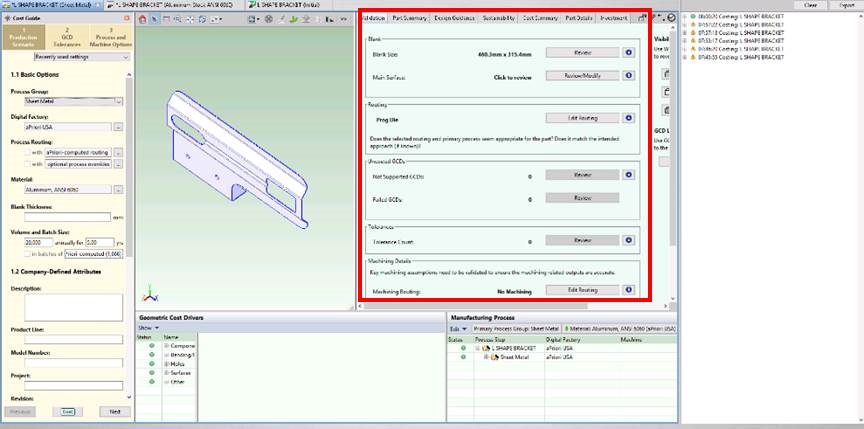
Explore the most recent message, using the Show Messages panel.

Expand out the messages to see how the software has worked through the twelve Sheet Metal process group routings. aP Pro has decided that two of these routings are feasible for the manufacture this part, and it has selected the Stage Tooling routing since it has the lowest cost.
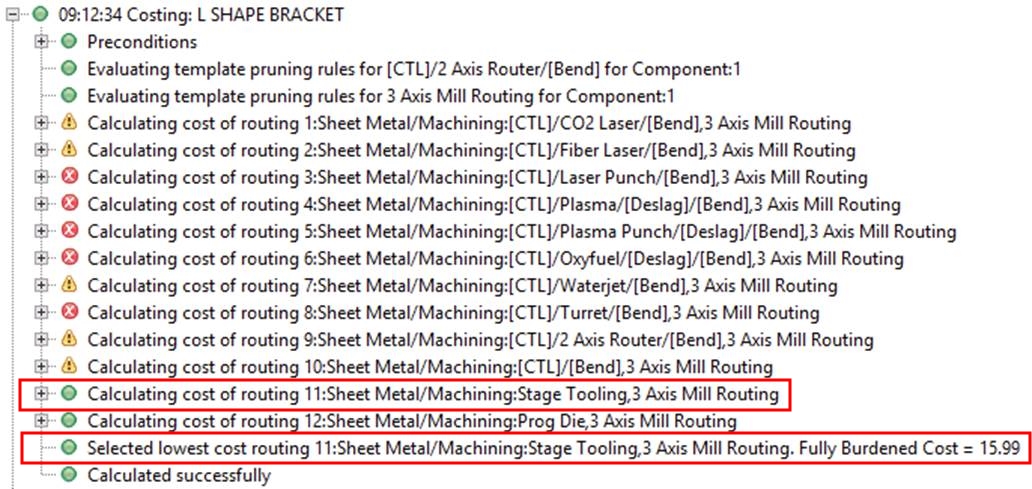
The final message shows that the costing has been calculated successfully.