PCBA Costing Dialog Parameters
Here is a summary of the parameters that you provide for PCBA costing (see Cost a PCBA):
Scenario Information
Provide details of the BOM to import:
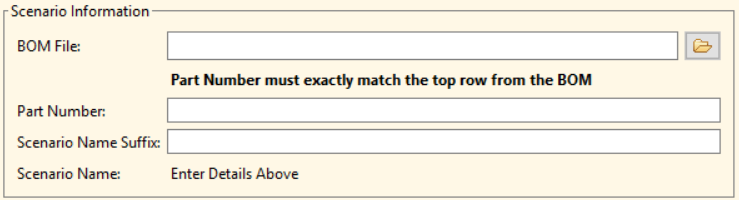
- BOM File: The full path name of the BOM .csv. (It is good practice to incorporate the part number in the name of the file).
- Part Number: The exact same value as the part number entered in Line #1 of the .csv file.
- Scenario Name Suffix: A string indicating the level, status, or some other aspect of this costing, such as “initial”, “test”, “asia”.
- Scenario Name: the full scenario name (read-only).
Component Import Behavior
The criteria and preferences to handle the data that aP Pro uses to cost your PCBA components:
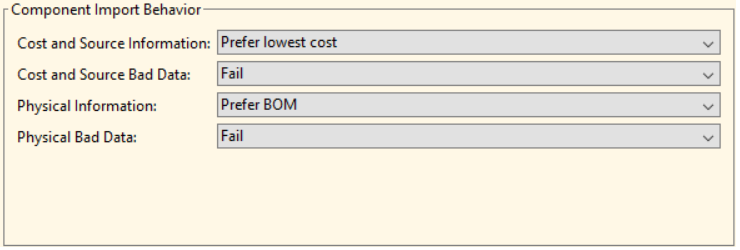
You can select data based on the data source (BOM file or Component Library) or, for costing data, the relative value of the data from each source. You can also specify what to do if the selected component data is incomplete, incorrectly formatted, or not present in the selected data source.
Tip:
Digital Factory Managers can customize this behavior - see Customize Component Import Behavior Parameters .
Background
To cost a component, aP Pro extracts data about the cost and the physical attributes of the component, from the Component Library and the BOM file.
- The Component Library contains data that is extracted from database sources such as a company’s ERP system.
- The BOM file contains data that is extracted from input fields such as those in the Electronics Data Collection interface.
Parameters and Settings
-
Cost and Source Information – Defines a data requirement, a source preference, or a source restriction for selecting the source for data that is stored in cost-related or source-related data fields, such as Unit Cost and Unit Type. Options are:
- Prefer lowest cost (default) – aPriori selects the minimum cost for the component based on data from both the BOM file and the Component Library. If there is bad data for the component in both the BOM file and the Component Library, the component fails to cost.
- Prefer highest cost – aPriori selects the maximum cost for the component based on data from both the BOM file and the Component Library. If there is bad data for the component in both the BOM file and the Component Library, the component fails to cost.
- Prefer BOM – If the BOM file contains complete, correctly formatted data for the component, aPriori uses that data. If not, aPriori follows the process that you select for the Cost and Source Bad Data parameter.
- Prefer Component Library – If the Component Library contains complete, correctly formatted data for the component, aPriori uses that data. If not, aPriori follows the process that you select for the Cost and Source Bad Data parameter.
- BOM only – If the BOM file contains complete, correctly formatted data for the component, aPriori uses that data. If not, the component fails to cost.
- Component Library only – If the Component Library contains complete, correctly formatted data for the component, aPriori uses that data. If not, the component fails to cost.
-
Cost and Source Bad Data – Defines the behavior that occurs if you set Cost and Source Information parameter to Prefer BOM or Prefer Component Library and the data in the preferred source is bad, that is, the data is incomplete, incorrectly formatted, or not present. Options are:
- Fail (default) – If the data in the preferred source is bad, the component fails to cost.
- Continue to second source – If the data is in the preferred source is bad, aPriori uses the data from the other source. If the data in the second source is also bad, the component fails to cost.
-
Cost Data – Use Digital Factory Defaults – Defines the behavior for unit cost if data is not available in either the BOM or Component Library. Options are:
- Yes (default) – if unit cost data is not in the BOM or Component Library, the unit cost will be taken from the lookup table Component Classification Defaults if the Classification value from the BOM includes one of the options defined the lookup table.
- No – if unit cost data is not in the BOM or Component Library, the part will fail to cost.
-
Physical Information – Defines a source preference or restriction for selecting the source for data that is stored in physical-attribute-related data fields, such as Pin Count and Mount Type. Options are:
- Prefer BOM (default) – If the BOM file contains complete, correctly formatted data for the component, aPriori uses that data. If not, aPriori follows the process that you select for the Physical Information Bad Data parameter.
- Prefer Component Library – If the Component Library contains complete, correctly formatted data for the component, aPriori uses that data. If not, aPriori follows the process that you select for the Physical Information Bad Data parameter.
- BOM only – If the BOM file contains complete, correctly formatted data for the component, aPriori uses that data. If not, the component fails to cost.
- Component Library only – If the Component Library contains complete, correctly formatted data for the component, aPriori uses that data. If not, the component fails to cost.
-
Physical Bad Data – Defines the behavior that occurs if you set Physical Information parameter to Prefer BOM or Prefer Component Library and data in the preferred source is bad, that is, the data is incomplete, incorrectly formatted, or not present. Options are:
- Fail (default) – If the data in the preferred source is bad, the component fails to cost.
- Continue to second source – If the data is in the preferred source is bad, aPriori uses the data from the other source. If the data in the second source is also bad, the component fails to cost.
-
Physical Data – Use Digital Factory Defaults - Defines the behavior for Pin Count and Mount Type fields if data is not available in either the BOM or Component Library. Options are:
- Yes (default) – if Pin Count or Mount Type is not in the BOM or Component Library, the respective field will be taken from the lookup table Component Classification Defaults if the Classification value from the BOM includes one of the options defined the lookup table.
- No – if Pin Count or Mount Type is not in the BOM or Component Library, the part will fail to cost.
Examples
An ERP system contains a Unit Cost data field that specifies the cost for a given component as 1 USD. This data is extracted to the Component Library. The aPriori Electronics Data Collection also contains a Unit Cost data field; however, it specifies the cost for the same component as 2 USD. This data is extracted to the BOM file. Therefore, the according to the Component Library, the unit cost is 1 USD while the BOM data puts the cost at 2 USD.
The Component Import Behavior settings allow you to instruct aPriori to select the data from the Unit Cost data field that:
- Contains the lowest cost, regardless of which data source contains that value
- Contains the highest cost, regardless of which data source contains that value
- Is stored in the BOM file
- Is stored in the Component Library
Consider this similar case. Again, the two input sources contain the same data field, and the ERP system specifies a Unit Cost of 1 USD. The aPriori Electronics Data Collection, however, specifies a Unit Cost of 2 instead of 2 USD. Not only is the data different across the two input sources, but the data is also incomplete in the second source because the cost unit is missing. If aPriori tries to use incomplete data for costing, the component fails to cost.
The Component Import Behavior settings allow you to instruct aPriori on how to proceed when the selected data is bad, that is, the data is missing, incomplete, or incorrectly formatted. You can instruct aPriori to:
- Not proceed with the cost. In this case the costing fails.
- Proceed with the cost using data from the non-preferred component data source. That is, cost using data from the BOM file if the Component Library data is preferred but bad or cost using data from the Component Library if the BOM file data is preferred but bad. Note that the costing also fails If the data in the non-preferred source is also bad.
Production Settings
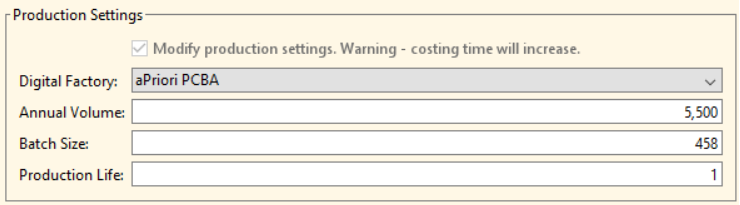
Define the production criteria for the PCBA component:
-
Modify Production Settings – This checkbox enables you to update production inputs. These inputs are pushed down to all child components. This checkbox is only available when recosting PCBAs, and when checked you can change the Digital Factory, Annual Volume, Batch Size and Production Life settings. Note: Enabling this option causes costing to be slower because all subcomponents are recosted.
-
Digital Factory – Select a Digital Factory that supports PCBA.
-
Annual Volume – Number of units you expect to manufacture in one year.
-
Batch Size – Number of units you expect to manufacture in a single batch.
-
Production Life – Number of years you expect the part to be manufactured.
Board Dimensions
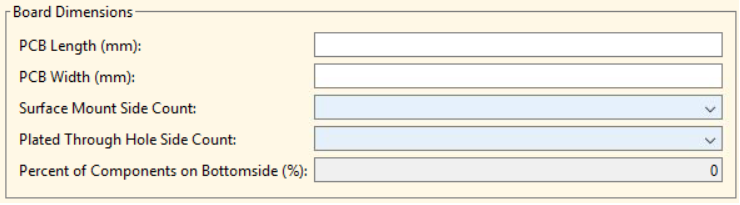
Describe physical aspects of the printed circuit board:
-
PCB Length (mm) –Length in mm.
-
PCB Width (in) – Width in mm.
-
Surface Mount Side Count – Specify Single-Sided, Double-Sided, or None.
-
Plated Through Hole Side Count – Specify Single-Sided, Double-Sided, or None.
-
Percent of Components on Bottomside (%) – A percentage approximation of the quantity of the components on the bottom side of the board.Required if you have specified Double-Sided above.
Panelization
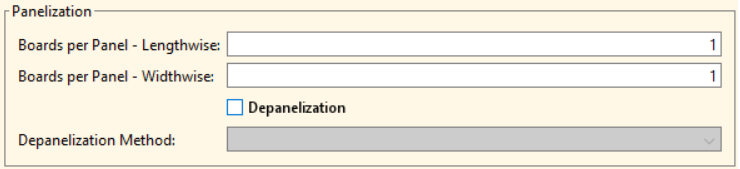
Specify if multiple PCBAs are built at the same time, and then separated into individual boards:
-
Boards Per Panel – Lengthwise –the number of boards along the length of the panel.
-
Boards Per Panel – Widthwise – the number of boards along the width of the panel.
-
Depanelization – This checkbox enables you to force depanelization for a 1 x 1 panel. This enables you to more accurately account for the processing required to manufacture boards that come in a sheet that must be trimmed, such as circular or other non-rectangular boards. This checkbox is only available when 1 x1 panels are specified. Depanelization is assumed for any settings greater than 1 x 1.
-
Depanelization Method – Specify Manual or Automated. (If manual, cost calculations will consider breaking the panels apart by hand. If Automated, use of a band saw is assumed.