Access Control basic concepts
You implement aPriori Access Control by defining user group that have permissions which consist of rules regarding the actions that can or cannot be performed on specific resources.
aPriori Access Control does not control access to fields or attributes, only to resources. However, rules can make use of custom attributes to fine-tune access to resources.
Note:
Access Control definitions in this section are shown as typed statements. However, typically, you define Access Control using the aPriori GUI so you can ignore the syntax shown. aPriori constructs the Access Control rules from your input. For more information, see Using the Access Control UI.
Groups are collections of aPriori users. Groups can have subgroups. (Groups do not need to have users as immediate members; they can have only sub-group members, where users are members of the sub-groups.)
Groups are the primary mechanism for modeling your organization's access requirements.
Permissions are associated with groups and consist of rules about the actions that can be granted or denied for a resource.
Resources are the entities to which you want to control access.
Use Rules consisting of subjects and properties to fine-tune conditions. Rules can be as simple or as complex as required, and you can use Booleans (AND OR) to chain rule segments together.
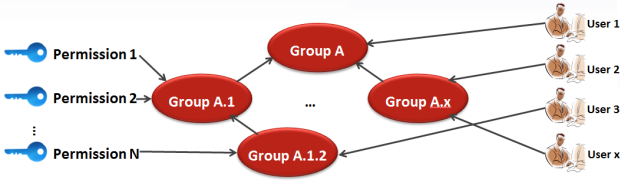
Resources
Access Control resources consist of the following:
- components (parts and assemblies)
- roll-ups (basic roll-ups, dynamic roll-ups, and cost comparisons)
- Digital Factories
- groups and permissions (these are used in advanced Groups).
An aPriori group is a-named container of aPriori users (or sub-groups) who share the same access requirements.
- Groups can have sub-groups.
-
You can re-use the same name for different groups; uniqueness is determined by the full path of each group. For example,
/USA/Develand/EU/Develare both recognized as valid, unique groups. Every user (even administrators) belongs to at least one group: the system-defined group "All Users".Note:
Since slashes are used to specify group paths, you cannot create a group with a slash as parts of its name.) System Administrators can also assign users to additional groups as necessary to control the permissions they have.
There are four system-defined groups, including one sub-group. The names in parentheses show the internal aPriori name for the group, which you may encounter in different contexts:
- All Users (
all_users) - System Admins
(administrators) - Super Users (
super_user) - Digital Factory Admins (
vpe_administrators)
These system-defined groups cannot be deleted, though the permissions associated with them can be edited. Note that all users (including members of the "System Admins" and "Digital Factory Admins" groups) are members of the "All Users" group.
All other groups are defined by an administrator or other user who is granted group creation permission.
Groups have a default attribute ("name"), and a membership setting None, Automated, or Manual, but can also have other custom attributes (not to be confused with User Defined Attributes).
If a user is a member of two groups, one of which allows access to a resource, and a second group that denies access to that same resource, that user will be denied access (although aPriori provides the ability to ignore or override "deny" permissions, which will be discussed later).
If you use LDAP connections, see LDAP Connections and Access Control Groups in the System Admin Toolset chapter.
Sub-groups
Groups can contain sub-groups, and sub-groups can also contain other sub-groups.
- Adding a user to a group automatically adds the user to any parent groups.
- Removing a user from a group automatically removes the user from all sub-groups. (Removed users are not removed from parent groups since they may belong to other sub-groups of a common parent.)
Sub-groups allow you to model access control situations where, for example, a given user is an administrative user for one project but just a "regular" user for a different project. In this case, the user could belong to the "Project A Admins" and "Project B Team Members" groups.
There is not any real difference between creating a user-defined group at a peer level with the system-defined groups and creating it as a sub-group of All Users.

Super Users
The System Admins group has a sub-group called "Super Users", which is created automatically (but not populated) at installation time.
Note:
It is important that the administrator installing aPriori adds himself or herself to the Super Users group before doing any other Access Control configuration. When the Super Users group has at least one member, you can’t accidentally delete the last member and potentially lock yourself out of the system.
Members of the Access Control Super-Users group have permissions that are not granted to other users. Specifically, they have "strongGrant" permissions for groups and permissions. In other words, they have Access Control powers over Access Control features.
Only the following Super-User characteristics can be changed, and they must be changed by a Super User:
-
password (which you should change as soon as the installation is done)
The password must conform to current password restrictions and limitations. For more information, see aPriori user password requirements.
-
membership in the Super-Users sub-group (you can add and remove members)
Note:
You cannot remove the last member of the Super Users group. If you need to remove the last user, you must first add another Super User.
Permissions
Permissions are the key to aPriori access control. A permission is associated with a group, and consists of:
- One or more actions
- A resource
- A rule
In short, a permission specifies whether a member of the group to which it belongs is granted or denied the ability to perform an action on the specified resource, based on the specified rule.
A permission can also include Grant/Deny behavior modifiers:
- Normal Grant: Actions are allowed if the permission rule is True unless blocked by a Strong Deny permission
- Strong Grant: Actions are always permitted if the permission rule is True
- Normal Deny: Actions are blocked if the permission rule is False unless allowed by a Normal Grant permission
- Strong Deny: Actions are blocked if the permission rule is False unless allowed by a Strong Grant permission
Note:
When you work with Permissions, you should not make any edits to baseline permissions. A baseline permission is a permission that is supplied with the original install of aP Pro. These permissions are reset upon every upgrade of aP Pro.
Actions
aPriori Access Control supports the following actions.
- Create (available to all resource, but cannot be combined with other actions)
- Read (available for all resources except for groups and permissions; Read access is already granted by the system for every user to every group and permission to enable Access Control to work)
- Update (available for all resources)
- Delete (available for all resources)
- Cost Using (available for only Digital Factory resources)
- Associate (available for only Permission resources)
Note:
Create can be applied to all resources but cannot be combined with any other action.
The other actions may or may not be applicable to various resources but can be combined with other actions that have compatible requirements. For example, Update and Delete require that the Resource already exists, and can be combined in the same Permission. But Create requires that the target Resource doesn’t already exist, and therefore cannot be combined with other actions which all require that the target Resource exists.
Similarly, you can create a Permission for Roll-ups that combines any combination of Read, Update, or Delete. But you cannot create a Roll-up permission with a Cost Using action, because Cost Using applies only to Digital Factory resources.
Read and Cost-Using are similar but have somewhat different behavior.
- In general, if you do not have Read permission for a Digital Factory, you cannot see it.
- If you do have Read permission for a Digital Factory, you can see it and read the data in it, but you will not be able to execute a cost operation using it unless you have Cost-Using permission. There are some variations to this rule depending on context:
- For a user to see a Digital Factory in a Cost Guide drop-down menu, that user must have both Read and Cost Using permission to that Digital Factory.
- In the Digital Factory Manager, a user needs only Read permission to see the Digital Factory.
In the case of overlay Digital Factories, the top-level Digital Factory is the only one that requires Cost-Using access. The underlying ("antecedent") Digital Factories do not require any access.
Resource
A Resource is the target on which the Action operates. As mentioned above, Resources include:
- Component (part and assemblies)
- Rollup (Roll-ups, Dynamic Roll-ups, Cost Comparisons)
- Digital Factory
- Group
- Permission
Rules can use the attributes of a target Resource to fine-tune their behavior.
Note:
Group and Permission are provided for "access control of access control", which is an advanced topic. (See Access Control of Access Control)
Rule
A Rule is an expression that determines a group member's access to a target Resource. For example:
If a rule evaluates to "true", then access is granted. If it evaluates to false, access is denied. However, there are grant and deny modifiers that determine how conflicting permissions are resolved.
Grant/Deny modifiers
The Grant and Deny permission modifiers give you the ability to fine-tune permissions by strengthening ("strong") access and denial results.
For example, permissions for Super Users who need exceptional access rights over access control feature will have the strong Grant modifier enabled. This means that Super Users are always granted access rights, even if another permission attempts to deny access.
Deny: Normal Deny is the out-of-box default setting for "regular" user permissions and translates to "An action is blocked unless another permission explicitly allows it". In general, when you (an administrator) create a new permission, use Normal Deny unless a Strong Deny is required.
This is typically paired with a normal Grant setting. A "normal Deny" is not a Deny at all; it is more like an "abstain" setting, which means that if a user is granted access by a permission, other permissions that return a normal Deny are ignored.
Only a strong Deny permission prohibits a user from an action form which they have been granted normal access. A normal Deny that abstains does not equate to granting access, it just means that the user will not be denied access if another permission grants it. This ensures that a user who belongs to multiple groups is not blocked from an action in one group because of a Deny in another group.
For example, assume that multiple groups are defined to correspond to projects. Each project has a Permission associated with it that has a component UPDATE action. The rule for each project might be something like:
Now consider a user who is a member of several of these groups.
Without the normal Deny ("abstain") modifier, this user would not be allowed to update ("save") any scenario, because strong Deny permissions associated with the other projects would prevent it.
Important:
By setting normal Deny rather than Strong Deny on these permissions, failure of the rule is treated as if the permission did not exist in the first place. This is not a security hole, since one needs to have at least one Permission that explicitly returns True (grants access).
Grant – Strong: This modifier can force access to be granted even if there are other permissions that strongly deny access. This is intended for the Super Users group whose members may also be in other groups that have more restrictive permissions. This modifier should be used carefully and sparingly outside of the Super Users group.
The following table explains how combinations of these modifiers affect access and deny permissions:
| Grant Level |
Deny Level |
Description |
|---|---|---|
| Normal | Normal | Access granted unless some other permission contains a Strong Deny. Access denied only if no other permission grants it. Note that this is the out-of-box default for "regular" users. |
| Strong | Normal | Access granted regardless of other permissions. Access denied only if no other permission grants it. Note that this is a superuser-level permission. Apply it with caution. |
| Normal | Strong | Access granted unless some other permission contains a Strong Deny. Access denied unless overridden by a Strong Grant |
| Strong | Strong | Access granted regardless of other permissions. Access denied unless overridden by a Strong Grant. Note that this is a superuser-level permission. Apply it with caution. |
A note about terminology
Access Control terminology has evolved and changed over time.
Here is a mapping in case you encounter an Access Control term that you don't recognize:
| Access Control Term: | May also be referred to as: |
|---|---|
| Resource | target, targetString |
| Action | verb |
| Rule | predicate |
| normalDeny | abstain; softFail |
| strongGrant | override, nonOverridable |
| Associate | "Add to Group" |