Creating an overlay Digital Factory
_1. If the Digital Factory Toolset is not already open, click Tools > Digital Factory Toolset.

-
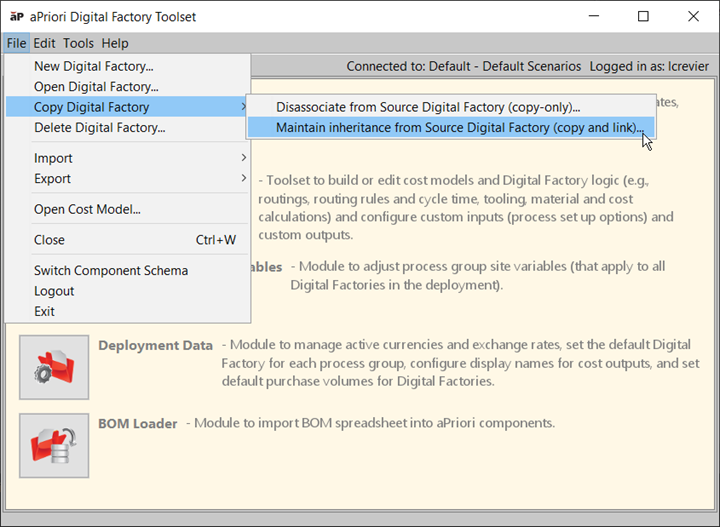
Select File > Copy Digital Factory > Maintain inheritance with Source Digital Factory (copy and link)...
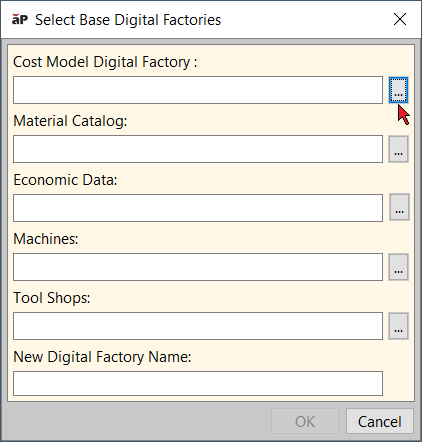
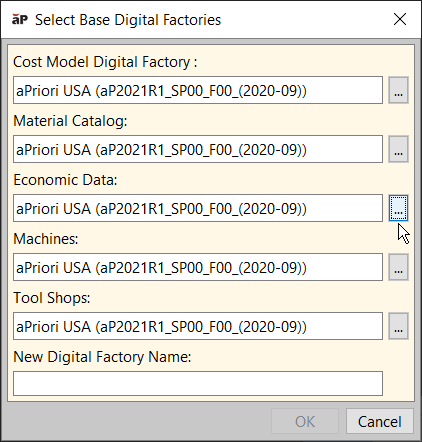
The Select Base Digital Factories window opens. The ellipse buttons that appear to the right of each dialog box allows you to open the Select Digital Factory window, which contains the parent options for the new Digital Factory.
-
To select a parent Digital Factory, in the Select Base Digital Factories window, click the relevant ellipsis button. Then, in the Select Digital Factory window, select the parent and click Open.
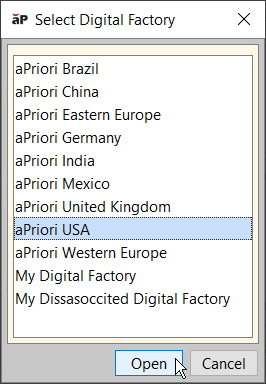
Note:
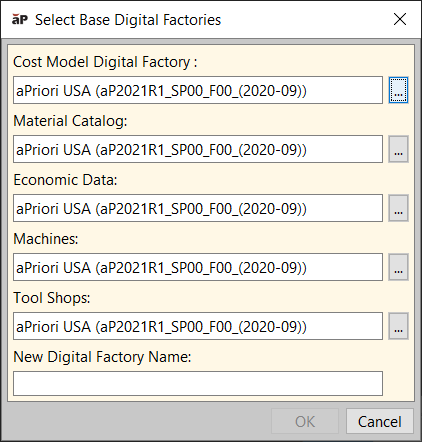
If you populate the Cost Model Digital Factory: field, any of the other Digital Factory fields that are empty will be auto populated by this selection. For example, this figure shows that if the aPriori USA Digital Factory is selected as the Cost Model Digital Factory, the empty dialog boxes are populated with the aPriori USA Digital Factory.
-
To change a parent, click the relevant ellipsis button. Then, in the Select Digital Factory window, select the parent and click Open.
For example, to change the Economic Data parent, click the Economic Data ellipse, select a new parent, and then click Open.
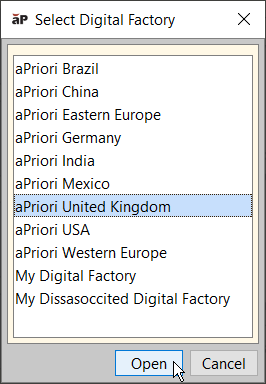
The new Economic Data parent appears in the Select Base Digital Factories window.
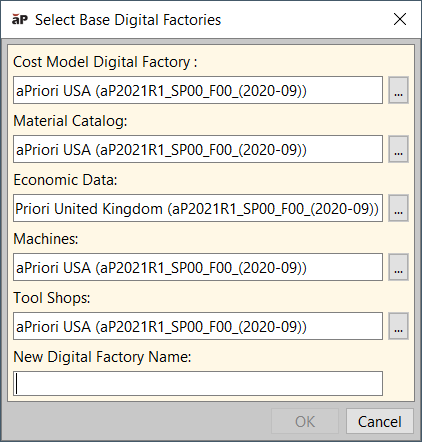
For more information, see Select Base Digital Factories dialog.
-
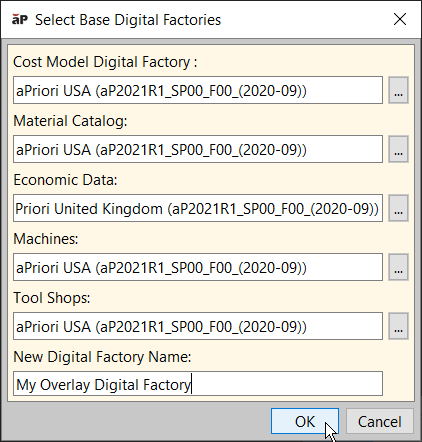
Enter a descriptive name for the new overlay Digital Factory in the New Digital Factory Name: field.
Note:
Digital Factory names must be unique and cannot include hyphens, slashes, or ampersands (-, /, &).
-
Click OK.
-
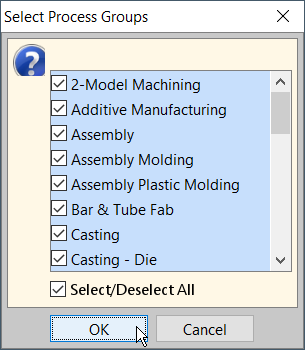
In the Select Process Groups window, select the process groups for your new overlay Digital Factory, and then click OK.
Important:
Important! If you select Cancel, the new digital factory is not created.
-
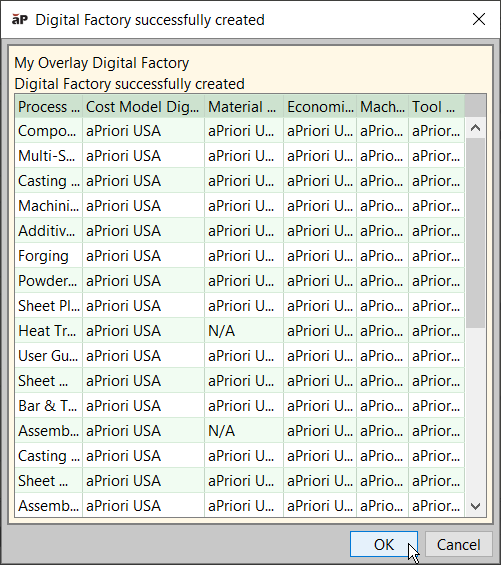
In the Digital Factory successfully created window, click OK.
-
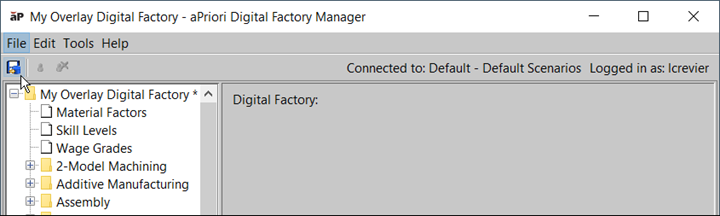
To save the new Digital Factory, in the Digital Factory Manager window, click the Publish icon,
 .
.
Select Base Digital Factories dialog
The Select Base Digital Factories dialog allows you to specify the Digital Factories from which a newly created Digital Factory will inherit cost model logic and various types of data. For more information, see Creating an overlay Digital Factory.
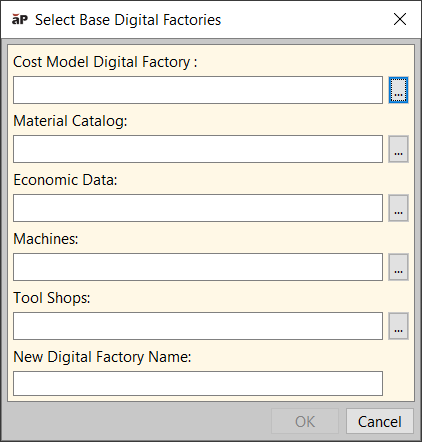
The dialog has the following fields:
-
Cost Model Digital Factory: specifies the Digital Factory from which the new Digital Factory will inherit:
- Cost model logic
- Cost model variables
- Wage Grade Associations table (see Working with wage grades)
-
Cost model metadata
Metadata defines the format of data; it defines the properties and fields that can be populated for various data tables. Metadata includes:
-
Material Type definitions
- Tool Shop Types
- Tool Material Types
- Lookup Table Definitions Digital Factory variables that do not include region-dependent data (see Region-dependent Digital Factory Variables) are statically copied from the Cost Model Digital Factory but do not dynamically inherit from it; they are not sensitive to updates to these fields that are made in the Cost Model Digital Factory subsequent to creation of the overlay.
-
Material Catalog: specifies the Digital Factory from which the new Digital Factory will inherit material tables and the Material Factors table.
- Economic Data: specifies the Digital Factory from which the new Digital Factory will inherit the Wage Grades table and those Digital Factory variables that include region-dependent data (see Region-dependent Digital Factory Variables).
- Machines: specifies the Digital Factory from which the new Digital Factory will inherit the machine tables (except possibly the machine fields Direct Overhead Rate and Indirect Overhead Rate).
- Tool Shops: specifies the Digital Factory from which the new Digital Factory will inherit tool shop data and tool material tables.
-
New Digital Factory Name: Name for the new digital factory.
If the Digital Factory variable
Use Computed Overhead Rateis set to true (the default in baseline Digital Factories), the machine fields Direct Overhead Rate and Indirect Overhead Rate are not inherited directly from the Direct Overhead Rate and Indirect Overhead Rate fields of the parent Digital Factory machine tables. Instead, these fields are dynamically calculated from other machine properties and Digital Factory variables (and are not directly user-editable in the machine table). See the section Overhead Rates in the Direct and Indirect Overhead section of the Cost Model Guide.