System Admin Toolset
Use the System Admin Toolset to administer users, licenses, configure deployments, and migrate data to new versions of aPriori .
Note:
You must have aPriori system administrator privileges to access the System Admin Toolset - see Assign System Admin Permissions
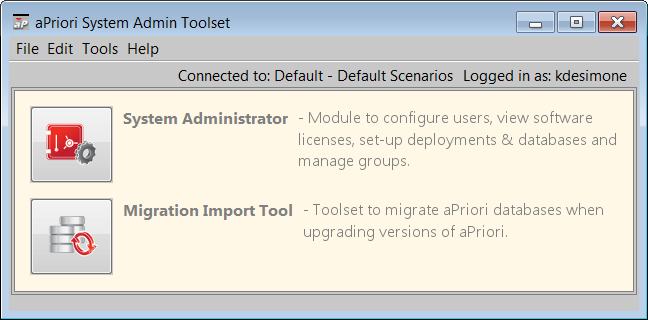
The System Admin Toolset includes the following options:
- System Administrator: Use this tool to add, edit, or delete aPriori users, view software licenses, set up deployments, set up databases, assign permissions to groups, create user defined cost object attributes, and customize the Search and Cost Object Info windows.
- Migration Import Tool: Use this tool to migrate aPriori databases when you want to upgrade to a new version of aPriori . See Migration Import Tool.
Launch System Admin Toolset
To access the System Admin Toolset, click Tools > System Admin Toolset on the aPriori menu bar, then select System Administrator on the aPriori System Admin Toolset window.
Assign System Admin Permissions
Only users with "System Admin" rights can access the System Admin Toolset to perform administration tasks.
To provide admin permissions:
- Select Tools > Admin Tools > System Admin Toolset
- Select System Administrator in the new window.
- Click on Users in the left-hand navigation.
-
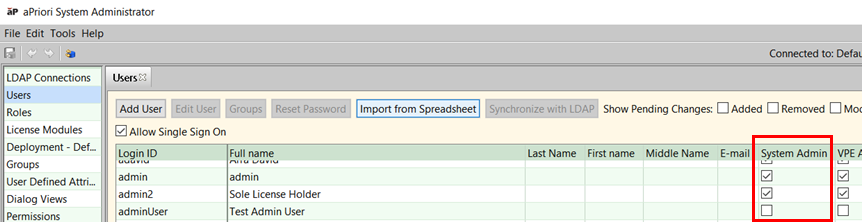
Locate the user you wish to mark as a System Admin or DF Admin. The example below shows that the adminUser does not currently have either set of credentials allocated to them:
-
To add Admin rights, either check the box in the System Admin or DF Admin column, or select the Edit User button, and check the System Admin or DF Admin box in the dialog that appears.
-
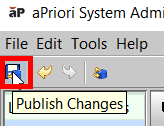
Publish (save) the changes by clicking on the Publish icon.
Info:
See Managing users for more information